
MKV to MP3 Converter
Pull the audio out of any MKV and save it as a small MP3 you can play anywhere. Free, in your browser, with no signup.


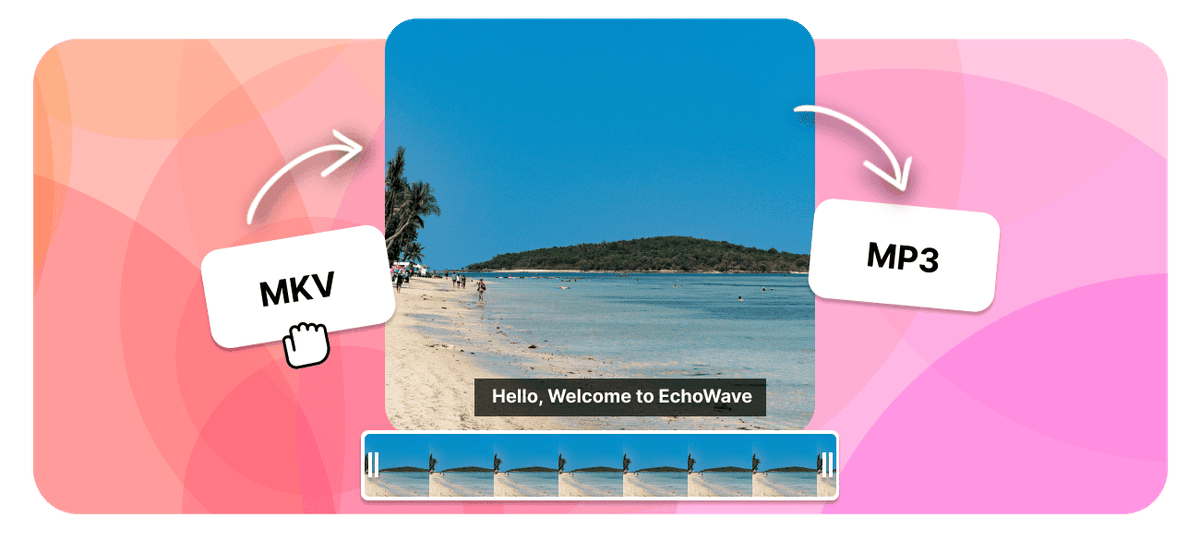
MKV to MP3 Converter Features
EchoWave is used by creators, marketers, educators, and businesses to convert and edit media online.





Extract the audio from your MKV and save it as a clean MP3, right in your browser. The video is dropped, so a heavy movie or recording becomes a small file you can play on any phone, car stereo, or podcast app. This is handy for keeping a film score, a lecture, or the dialogue from a clip, and MP3 is the one audio format that plays on effectively everything. EchoWave does it free, with no signup and no watermark.
How it works
How to convert MKV to MP3
- 1
Upload your MKV
Drag your MKV onto the converter or pick it from your device. Nothing to install.
- 2
Choose MP3 and convert
Select MP3 as the output, set the bitrate if you want, then start. Free, with no sign-up.
- 3
Download your MP3
Save the finished MP3 to your device, or open it in the editor to trim or reuse it.
Try it
Estimate your MP3
Pick a bitrate and a length to see the MP3 file size before you convert.
Drag to set the clip length in minutes, from 1 to 60.
An estimate. Real size varies a little with the encoder and the audio itself.
The formats
MKV vs MP3
Matroska Video
An open container that holds almost anything
- Type
- Open video container
- Holds
- Almost any codec, plus several audio and subtitle tracks
- Typical size
- Large, depends on the codec inside
- Plays on
- VLC and most modern players, less on default phone apps
Best for:Movies with multiple audio tracks and subtitles
MPEG-1 Audio Layer III
The most universal audio format ever made
- Type
- Lossy audio format
- Holds
- Audio only
- Typical size
- Small, about 1 MB per minute at 128 kbps
- Plays on
- Effectively everything
Best for:Music, podcasts, and audio you listen to
Will it lose quality?
- The MP3 can only be as good as the audio already inside your MKV.
- A bitrate higher than the source does not add quality, it only makes a bigger file.
- 192 to 320 kbps keeps music clear. 128 kbps is fine for speech.
Converting to MP3 re-encodes the audio. To keep it exactly as it sits inside the video, convert to M4A instead, or to WAV for an uncompressed copy.
Use cases
What people use it for
Troubleshooting
If something looks off
The MP3 has no sound
The file is too large to email
Which apps open MP3 files?
FAQ
MKV to MP3 questions
How do I pick which audio track to extract from an MKV?
Will the MP3 sound as good as the MKV?
What MP3 bitrate should I choose when extracting from an MKV?
Is the MKV to MP3 converter free?
How do I convert MKV to MP3?
Does the MP3 keep the song details from the file?
Does the MKV to MP3 converter work on iPhone, Android, Mac, and Windows?
Can I keep the audio without re-compressing it?
How long does it take to convert a long video?
What is an MKV file?
Does the video get discarded when I convert MKV to MP3?
Do I need to install software to convert MKV to MP3?
What happens to a 5.1 surround track when I convert to MP3?
Is there a file size limit for MKV to MP3 conversion?
Does the extracted MP3 have a watermark?
Why convert MKV to MP3
MKV is the container people archive video in. It is open, it holds almost any codec, and unlike most containers it comfortably carries several audio tracks, switchable subtitles, and chapter markers in one file. That flexibility is exactly why film libraries, recorded streams, concert rips, and downloaded lectures so often arrive as MKV.
It is also why the files are enormous, and why you frequently want only a slice of what is inside. Converting MKV to MP3 pulls the audio out and leaves the video behind, which is the right move when what you actually want is the film score, the dialogue from a scene, a recorded lecture you would rather listen to than watch, a concert set for the car, or a language track you are studying.
The size difference is the immediate payoff. A feature-length MKV can run to several gigabytes; the same runtime as an MP3 is typically tens of megabytes. The compatibility difference matters just as much. MKV is well supported by VLC, Plex, and Kodi but notably less so by default phone gallery apps, TVs, and car stereos. MP3 plays on effectively everything, which is what makes the extracted audio genuinely portable in a way the MKV never was.
Extracting the MP3 from an MKV step by step
- Add your MKV. Drag it onto the converter or pick it from your device. There is nothing to install and no account to create, which is the main advantage over setting up a desktop tool for a job you may only do once.
- Choose MP3 as the output. This keeps the audio and discards the video rather than repacking the whole file.
- Set a bitrate if you want to. The default suits most sources; 320 kbps is worth it for a score or a concert, and 128 kbps is plenty for dialogue and lectures. The estimator higher up this page shows the resulting size before you start.
- Convert and download. Save the MP3, or open it in the editor first to trim it down to the section you actually wanted, which is usually the case with a two-hour source.
The conversion runs on our servers rather than on your machine, so a multi-gigabyte MKV does not depend on how powerful your laptop is. Uploading a large file takes the time it takes, but a long movie converts the same way a short clip does.
MKV files often carry more than one audio track
This is the thing that makes MKV different from almost every other source you might extract audio from, and it is worth understanding before you convert.
A single MKV routinely holds several parallel audio tracks: an original language and one or more dubs, a director's commentary, a descriptive audio track, or a stereo mix sitting alongside a surround one. The converter takes the main track by default, which is the right answer most of the time. When it is not, and you specifically need the commentary or a particular language, open the file in the editor first and choose the track you want before exporting the MP3.
If the MP3 comes back in an unexpected language, or you get commentary when you wanted the film, that is what has happened: the file's main track simply was not the one you had in mind. Selecting it explicitly in the editor fixes it.
The other symptom worth naming is a silent MP3. Occasionally an MKV's default track is one your source never actually populated, or the file's audio is a format the container is holding but nothing decoded on playback either. Play the MKV with the volume up first to confirm you can hear what you are trying to extract.
Quality and bitrate when extracting
MKV is a container, not a compression format, so what is inside varies enormously. Film MKVs commonly carry AC-3, DTS, AAC, or occasionally FLAC audio, sometimes in surround. MP3 is a different, stereo, lossy format, so the track is re-encoded on the way out rather than copied across untouched.
Two honest consequences:
- The MP3 can only be as good as the audio already inside the MKV, and a bitrate higher than the source adds file size rather than quality. If the MKV holds a modest AAC stereo track, exporting at 320 kbps preserves it faithfully and wastes space doing it.
- Surround becomes stereo. MP3 is a stereo format in practice, so a 5.1 track is mixed down rather than preserved. For listening on headphones, in a car, or on a phone that is exactly what you want. If you need the surround mix intact, MP3 is the wrong destination.
For choosing a bitrate: 320 kbps for a score or concert recording you plan to keep, 192 to 256 kbps for general listening, and 128 kbps for dialogue, lectures, and interviews. If you would rather not re-compress at all, MKV to WAV gives you an uncompressed copy suitable for dropping into an editor, at the cost of a much larger file.
Related conversions and tools
If the video is worth keeping but the container is the problem, MKV to MP4 repacks it into the format phones, TVs, and social platforms actually accept, often without re-encoding the picture at all. MKV to WAV is the route for uncompressed audio headed into an edit.
For other video sources, MP4 to MP3 covers the most common container and the general video to MP3 converter handles the rest. Once the audio is out, the audio merger joins extracted segments into one continuous file, and audio to video turns a track back into something you can upload to a platform that only accepts video.
How creators use EchoWave in real projects

About the EchoWave team
EchoWave is a browser-based video and audio editor built by Lemon Vault LLC since 2018. The people who build the editor write these guides and test every step in the production app before publishing.
Convert MKV to MP3 for free Free online converter
Upload an MKV and get a clean MP3 of its audio back. No signup, no watermark, no install.
Convert Files →
Keep converting