Add Emoji to Video Online, Free
Upload a clip and place emoji exactly where they belong. Resize, rotate, and time every emoji on the timeline, mix them with stickers, text, and subtitles, or let AI transcribe your captions and add fitting emoji at the end of each line, animated on top, or both. Change any AI pick, then export a finished MP4 straight from your browser. Works with MP4, MOV, WebM, AVI, and more. No app or sign-up needed to start.


Add Emoji to Video Online, Free Features


Emoji overlay studio
Drag emoji on video or let AI add them to subtitles
Every emoji can be a normal layer or part of your subtitles. Drag one onto the video, or turn on AI emoji subtitles so EchoWave transcribes the audio, picks fitting emoji, and places them at caption ends, above captions, or both. You can change every AI pick.
- Position Drag anywhere
- Size Tiny to full frame
- Rotation Any angle
- Timing Start and end
- Subtitles End, top, or both
- Layers Stack as many as you like
- Animation Pop, fade, slide

Emoji added. Start now?
Open the full editor to fine-tune the placement, add AI emoji subtitles, and export your video.
Drag any emoji onto the movie frame, then start the editor to place it precisely or add AI emoji subtitles
Emoji moves
Six emoji moves people use every day
Start from a move that matches your clip, then swap in any emoji from your keyboard.
- Reaction clips
Pop
Reaction pop
Drop a reaction at the exact frame the moment happens, then take it off screen before the next beat.
- Privacy
Pin
Cover a face
Pin an emoji over a face, license plate, or screen detail as a quick privacy cover that stays put.
- Tutorials
Slide
Point it out
Slide a pointing emoji toward a button, product, or detail so viewers look exactly where you want.
- Promos
Bounce
Hype the drop
Bounce an alert emoji during a price reveal, launch, or announcement to give the moment urgency.
- Milestones
Float
Celebrate the win
Float celebration emoji over milestones, results, before and after reveals, and thank you clips.
- Muted viewing
Fade
Set the tone
Fade a mood emoji in to carry the joke or feeling, even when the video plays muted in a feed.
Drag emoji or generate them from subtitles
Paste or search any emoji, combine several on one clip, or let AI transcribe captions and add fitting emoji automatically. You can change every emoji before export.
Timing control
Make emoji land on the beat
Manual emoji layers have their own start and end time. AI emoji subtitles follow each caption, so the emoji appears at the end of the line, animated above it, or both.
- Track 1
-
0:02–0:05
Reaction
Lands on the punch line
-
0:09–0:18
Privacy cover
Stays pinned for the scene
-
- Track 2
-
0:07–0:13
Pointer
Guides the eye to the demo
-
0:19–0:24
Celebration
Caps the final result
-
Placement
Make emoji look intentional
-
One emoji per moment
A single well timed emoji reads instantly. A pile of them turns into noise.
-
Match the size to the subject
A small emoji works as a reaction, a large one works as the punch line. Scale it to the role.
-
Keep clear of captions
Leave the subtitle zone free, or use AI emoji subtitles so the emoji belongs to each caption instead of fighting it.
-
Give it an exit
Set an end time so the emoji leaves once its moment is over instead of lingering on screen.
Overlay layers
Pick the right overlay for the job
- This tool
Emoji
The fastest overlay. Search or paste any emoji from your keyboard and it renders crisp at any size.
- AI captions
Subtitle emoji
AI transcribes speech, chooses a fitting emoji, and attaches it to each subtitle. Put it at the end, above with animation, or both.
- Custom art
Sticker
An image overlay for branded graphics, custom art, or anything emoji cannot say.
- Words
Text
Words, titles, captions, and labels with their own fonts, colors, and animations.
- Censor
Blur
A censor layer when an emoji cover is too playful for the content underneath.
Add emoji to videos without installing an app
EchoWave is used by creators, marketers, and teams around the world





How to add emoji to a video
Add emoji to a video online in three steps, by hand or with AI emoji subtitles.
-
1. Upload your video
Choose an MP4, MOV, WebM, AVI, or another common video file from your device and open it in EchoWave's browser editor. It works on desktop, iPhone, Android, and tablet.

-
2. Add emoji or AI emoji subtitles
Open the overlay tools, search or paste any emoji, then drag it onto the video. Or generate subtitles automatically and let AI add emoji at the end of captions, animated above them, or both. Change any emoji before export.

-
3. Export and share
Preview the clip, check that every emoji lands at the right moment, then export an MP4 with the emoji burned in for TikTok, Reels, Shorts, YouTube, WhatsApp, or your camera roll.

What creators say after trying EchoWave
What can you do with emoji on a video?
To add emoji to video online, upload your clip to EchoWave, open the emoji tools, then search or paste any emoji and drag it onto the frame. Resize, rotate, and set when it appears on the timeline, or let AI add emoji to your subtitles automatically. Export a finished MP4 when you are done. This emoji video editor runs in your browser, with no app to install.
How to add emoji to video online
EchoWave treats every emoji as its own layer that sits on top of the video. Once a clip is open in the editor, you search the full emoji keyboard or paste an emoji you already have, drop it onto the frame, and drag the corners to scale it from a small reaction in the corner to a punch line that fills the screen. Each emoji has handles for moving, resizing, and rotating to any angle.
Because emoji are layers rather than baked into the footage, you can stack several at once, reorder them, and give each one its own start and end time. Nothing is permanent until you export, so you can reposition, swap, or delete an emoji at any point. When you are happy, EchoWave renders the emoji into the video so they travel with the file wherever you post it.
Add emoji to subtitles with AI
Most emoji tools stop at manual placement. EchoWave can also read your audio. Turn on AI emoji subtitles and the editor transcribes the speech, builds timed captions, and attaches a fitting emoji to each line. You choose where the emoji sits: at the end of the caption text, animated above the caption, or both at once.
The AI makes a first pass so you are not starting from a blank screen, and every pick stays editable. If it suggests a laughing face where you wanted a fire emoji, change it in one click. This is the fastest way to give a talking-head clip, podcast cut, or tutorial the lively captioned look that performs well on TikTok and Reels, without typing each emoji yourself.
Add emoji for TikTok, Reels, and Shorts
Short vertical video lives at 9:16 and usually autoplays on mute in a fast feed. A well placed emoji makes a reaction obvious, marks the punch line, and keeps a clip readable when the sound is off. Export at 1080 by 1920 for TikTok, Instagram Reels, and YouTube Shorts so the emoji stays crisp on a phone screen.
Keep emoji clear of the right-hand action buttons and the lower caption area that each app overlays on top of your video, otherwise the platform UI can sit over your emoji. EchoWave shows the full frame as you place things, so you can leave room for the like, comment, and share icons. To pin an emoji on a TikTok video, set its position once and leave it fixed for the full clip so it never drifts.
Add emoji to a video on iPhone and Android
You do not need the Apple Clips app or a separate Android editor. EchoWave runs in mobile Safari and Chrome, so you can add emoji to video on iPhone, or add emoji to a video on Android, without installing anything. Open this page on your iPhone or Android device, tap upload, choose a clip from your camera roll or gallery, place the emoji, and download the finished MP4 back to your phone ready to post.
This also keeps your phone storage free of yet another editing app, and it gives you the same timeline and AI captions you would get on a laptop.
Reaction clips, memes, and moving emoji
When you want to put an emoji on a video at a precise moment, time a laughing, shocked, or skull emoji to the exact beat of a reaction. Since each emoji has its own start and end point, the joke lands once instead of lingering for the whole clip. Add an entrance such as a pop, fade, or slide so a moving emoji enters on cue and leaves when its moment is over. For memes, scale one emoji large as the visual gag and let the timing do the work.
Tutorials, screen recordings, and privacy covers
Pointing emoji, checkmarks, and warning signs mark buttons, steps, and settings in a how-to without burying the screen you are demonstrating. You can also pin an emoji over a face, a license plate, a name badge, or an on-screen detail as a quick privacy cover before posting. For sensitive footage that needs real obscuring, the censor video tool applies proper blurring, and the sticker tool covers things with custom images and logos.
Supported formats, specs, and limits
EchoWave accepts common video formats including MP4, MOV (the format most iPhones record in), WebM, AVI, and MKV, and it exports a widely compatible MP4. Emoji render from your device font, so they appear as the version your operating system ships, and they stay sharp at any size because they scale cleanly. Work in 9:16 for vertical, 1:1 for square feed posts, or 16:9 for YouTube and landscape.
The editor processes your clip in the browser, so very long files or very high resolutions depend on your device. For most social clips up to a few minutes this is no issue. The tool degrades gracefully if your browser cannot read an unusual codec: the upload and conversion still go through so you can keep editing.
Export your video with emoji
Emoji added in EchoWave are rendered into the final video, so they stay visible after you upload to TikTok, Instagram, YouTube, WhatsApp, Snapchat, Facebook, or anywhere else. You can add emoji for free. Free exports include a small EchoWave watermark, and paid plans remove it when you need a clean export. EchoWave's dedicated quick tools for cropping, trimming, and compressing export with no watermark, while the full editor used here adds the small removable mark on free plans.

Made for feeds watched on mute
Most social video autoplays silently. Emoji carry the reaction, the tone, and the punch line even when nobody hears the audio, so viewers stay with the clip instead of scrolling past.
Pair emoji with subtitles or turn on AI emoji subtitles so each caption can get a fitting emoji at the end, animated above it, or both.
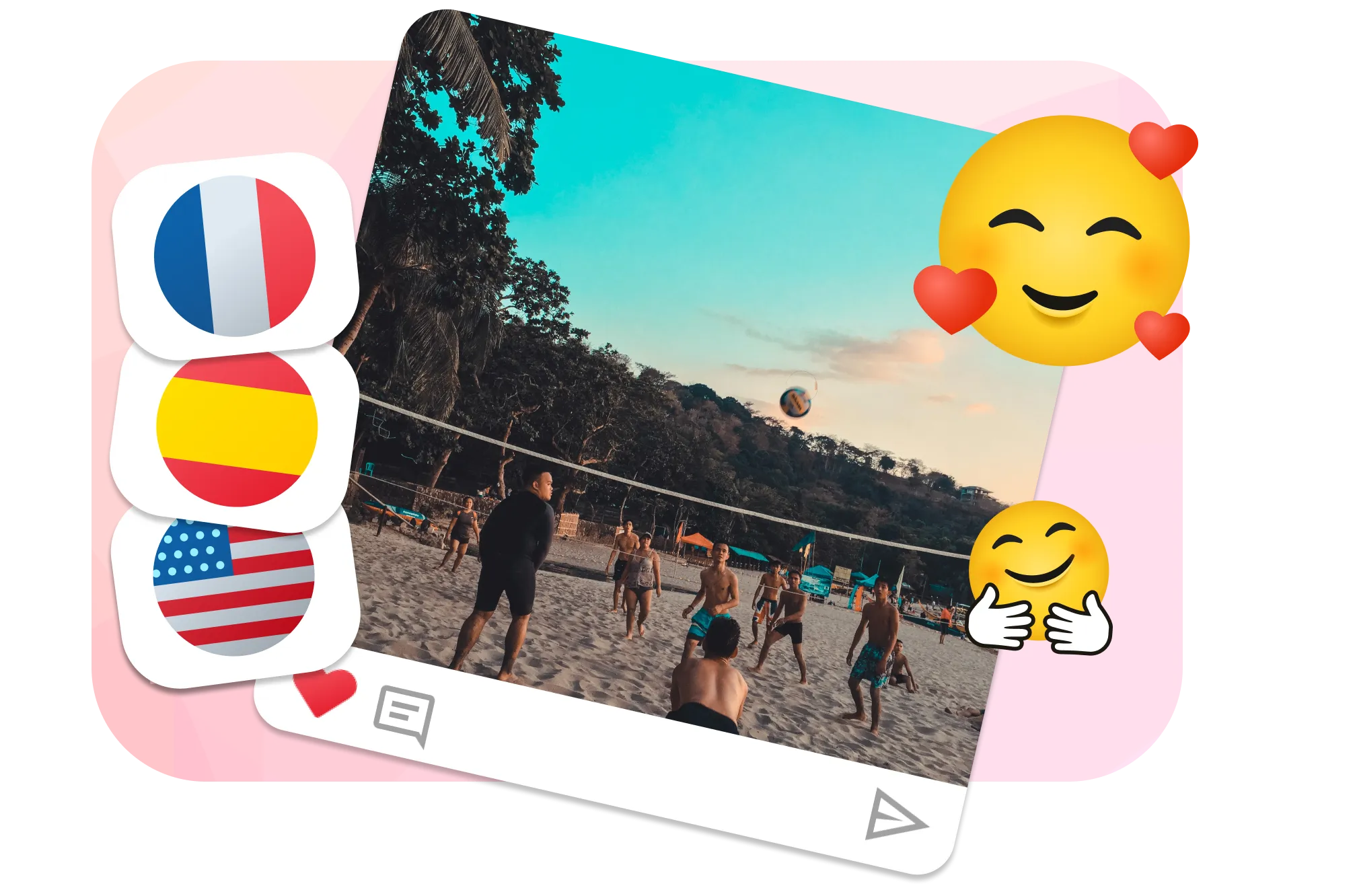
Understood in every language
Emoji mean the same thing in nearly every country, which makes them a shortcut for international audiences. A flame, a heart, or a laughing face needs no translation.
If your viewers span several languages, emoji keep the emotion clear while subtitles do the detail work. AI suggestions give you a fast first pass, and you can change any emoji to match the tone.

About the EchoWave team
EchoWave is a browser-based video and audio editor built by Lemon Vault LLC since 2018. The people who build the editor write these guides and test every step in the production app before publishing.
Frequently Asked Questions
Answers for people who want to add emoji, generate AI emoji subtitles, control timing, and export a shareable video.
How do I insert an emoji in a video?
Upload your video to EchoWave, open the emoji tools, search or paste an emoji, then drag it onto the frame. Set its size, position, and timing, and export the finished MP4 when you are done.
Can EchoWave add emoji to subtitles automatically?
Yes. EchoWave can transcribe your audio, build timed subtitles, and use AI to pick a fitting emoji for each caption. Show it at the end of the line, animated above the caption, or both, and change any emoji before export.
Can I add an emoji to an iPhone video?
Yes. Open this page in Safari on your iPhone, choose a clip from Photos, add emoji in the editor, and download the finished MP4 back to your camera roll. No Apple Clips app is needed.
How do I add emoji to a video on Android?
Open the editor in Chrome on your Android phone or tablet, upload a clip from your gallery, place the emoji, and download the result. EchoWave runs in the browser, so there is nothing to install.
How do I move emojis in a video?
Select the emoji and drag it anywhere on the frame. You can reposition it at any time before export, and set its start and end on the timeline so it only appears during one scene or phrase.
How do I pin an emoji on a video?
Place the emoji where you want it and leave its position fixed for the duration you set. It stays pinned to that spot, which is handy for covering a face or marking a detail throughout a scene.
Can I resize and rotate emoji on the video?
Yes. Select the emoji, then drag the corner handles to resize it and rotate it to any angle. You can place emoji on faces, corners, objects, or over text.
Can I add a moving emoji to a video?
Yes. Give an emoji an entrance such as a pop, fade, or slide, and use its start and end time so it animates on and off screen at the right moment.
Can I add more than one emoji at once?
Yes. Add several emoji, duplicate them, or mix emoji with stickers, text, subtitles, images, and logos. Each one keeps its own size, position, and timing.
Is it free to add emoji to a video?
Yes. You can add emoji to a video for free with no sign-up to start. Free exports include a small EchoWave watermark, and paid plans remove it when you need a clean export.
What video formats can I upload?
EchoWave accepts common formats such as MP4, MOV, WebM, AVI, and MKV. The editor exports a shareable MP4 that plays on every major platform.
Will the emoji stay on the video for TikTok and Instagram?
Yes. EchoWave renders the emoji into the video file, so they stay visible on TikTok, Instagram, YouTube, WhatsApp, Snapchat, and anywhere else you share the clip.
Can I add emoji to a video that iMovie or CapCut cannot place easily?
Yes. EchoWave works in any browser without the limits of a desktop app, so you can add emoji, AI emoji subtitles, and overlays, then keep editing with trim, crop, audio, and more in one project.
Is my video private when I add emoji online?
Your clip is processed in your browser to add emoji, and no account is required to start. Upload a file and begin editing right away.
Add emoji to your video Free online editor
Start for free. Add emoji by hand or generate AI emoji subtitles, then export with a small EchoWave watermark on free plans.
Upload a video