Add Text to Video Online Free
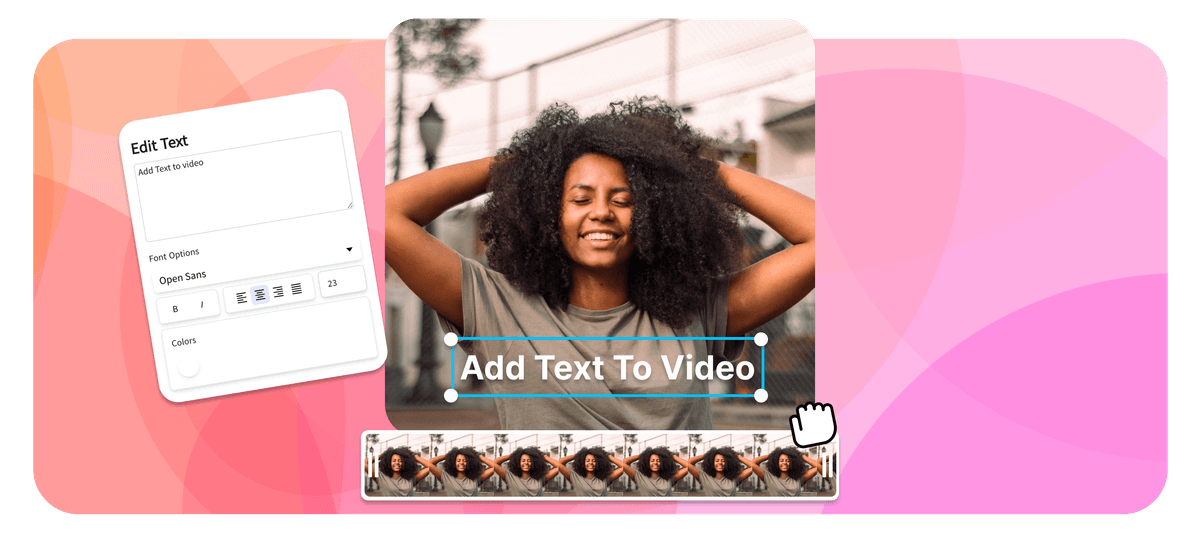
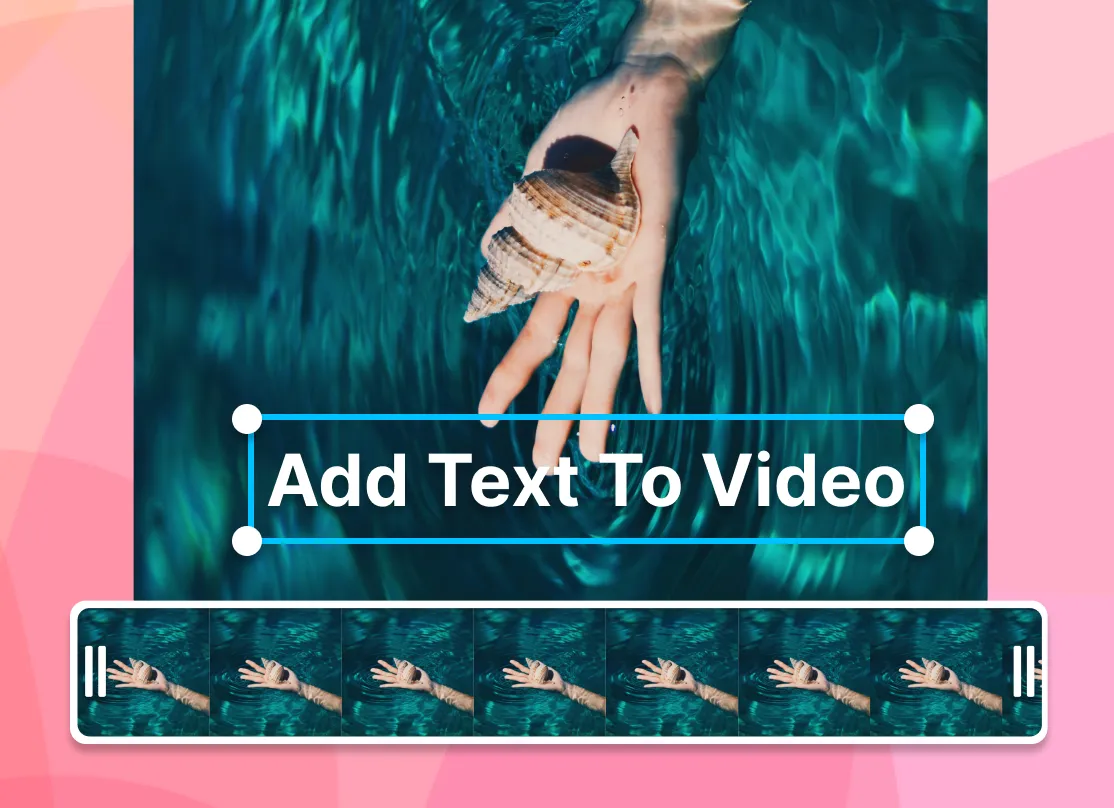
Upload a clip, click Add Text, and place words exactly where they belong. Add a title, caption, subtitle, lower third, label, meme line, or call to action, then control the style and timing from one browser editor. Start free with no download or account required. When you export, the text is rendered into the MP4 so it stays in place anywhere you post it.

Add Text to Video Online Free Features


Text styles, captions, and templates
Design the exact text layer your video needs
Start from a style when it saves time: a headline, lower third, dynamic caption, meme layout, tutorial label, or CTA. Then adjust the font, color, size, alignment, opacity, animation, position, spacing, start time, and end time so the text fits the footage instead of feeling pasted on.
- Font 1,000+ choices
- Color Fill, stroke, shadow
- Size Scale for mobile
- Background Box or transparent
- Animation Fade, pop, slide
- Timing Start and end
- Openings
Pop
Headline title
Large title text for hooks, intros, product reveals, YouTube chapters, and social media headlines.
- Captions
Fade
Dynamic caption
Caption text for short-form clips, auto captions, karaoke word highlighting, and videos watched without sound.
- Names
Slide
Lower third
A speaker name, role, location, or source label for interviews, webinars, podcasts, and testimonials.
- Memes
Bounce
Meme text
Top text, bottom text, reaction captions, and classic white text with a black outline for meme videos.
- How-to
Typewriter
Tutorial label
Precise labels, arrows in spirit, step numbers, and callouts for screen recordings and how-to videos.
- Promos
Lift
CTA sticker
Short call-to-action text with a bright backing box for promos, ads, launches, and end screens.
A full text stack, not one pasted label
Layer a hook title, speaker name, caption style, product label, and closing CTA in the same project. Each layer keeps its own style, position, motion, and duration.
Timing control
Put text where it helps, then let it leave
Use the timeline to make text appear only for the moment it supports: a title at the opening, captions during speech, a lower third for the speaker, or a CTA at the end.
- Track 1
-
0:00–0:03
Hook title
Open with the promise
-
0:10–0:15
Lower third
Name the speaker
-
- Track 2
-
0:03–0:10
Auto caption
Highlight key words
-
0:18–0:24
CTA text
Finish with the next step
-
Readability
Make every text overlay readable on mobile
-
Use strong contrast
Pair light text with dark footage, dark text with light footage, or add a backing box for busy clips.
-
Keep lines short
Aim for fast-scanning text on phones, especially for Reels, Shorts, TikToks, and ads.
-
Respect safe zones
Keep important words away from captions, profile badges, like buttons, and the frame edge.
-
Match motion to intent
Use punchy animation presets for promos and quieter fades for tutorials, product demos, and interviews.
Text layers
Choose the right text layer for each job
- Any position
Text overlay
Freeform static or moving text placed anywhere on the video canvas.
- Spoken words
Caption
On-screen text that explains speech, sound, or context for silent viewing.
- Accessibility
Subtitle
Transcribed or translated speech for accessibility and multilingual audiences.
- Speaker ID
Lower third
Speaker names, roles, locations, or source labels near the lower frame.
- Scene change
Title card
A full-frame heading, section break, intro, or end-screen message.
EchoWave gives you normal video-editor control without making you install a desktop app. Add a text layer, type your copy, drag it on the canvas, and set the exact start and end time on the timeline. A hook can appear for the first three seconds, captions can follow speech, a lower third can identify a speaker, and a CTA can appear only at the end.
That keeps the page simple for beginners while still giving creators, marketers, educators, and teams enough control to make polished text overlays for real projects.
How to add text to a video online
A practical workflow for adding readable, timed text overlays without installing software.
-
1. Upload your video
Open EchoWave and upload your clip from your device. Common phone, camera, and screen-recording files work in the browser, with more format details covered below.

-
2. Open the Text tab
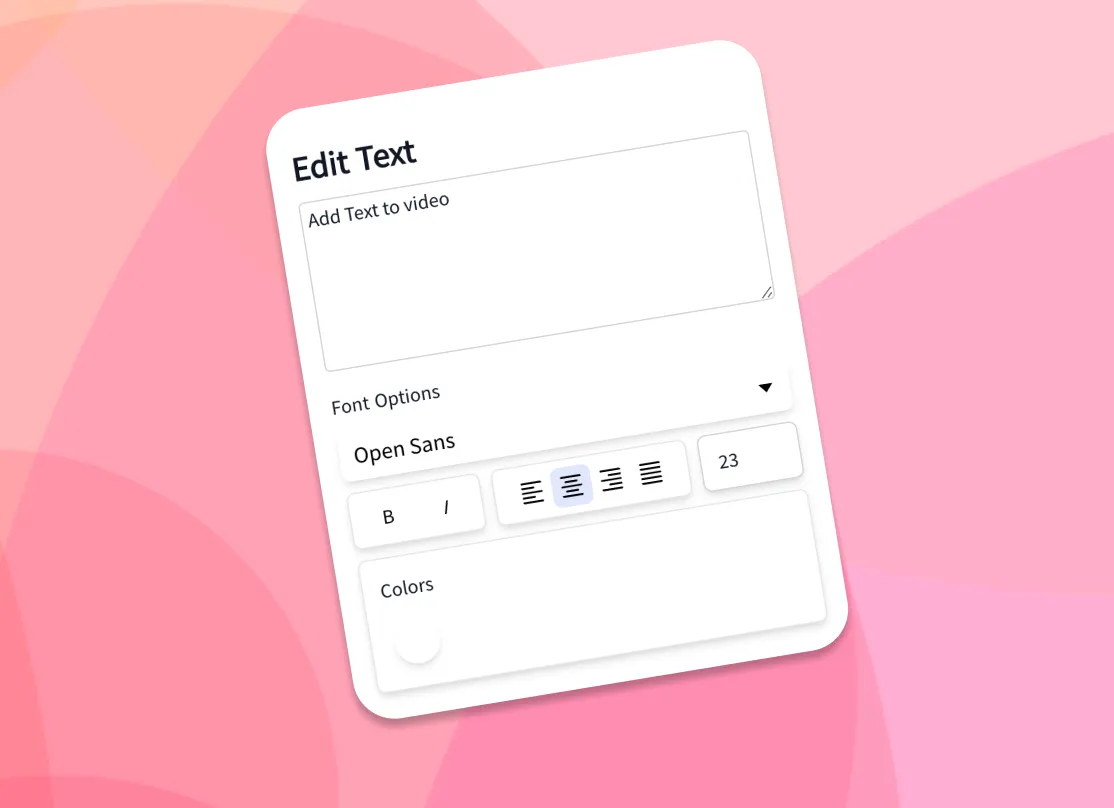
Open the Text tab, choose a style or start from a blank text box, then type the words you want viewers to see: a title, caption, subtitle, speaker label, lower third, or CTA.
-
3. Customize the text appearance
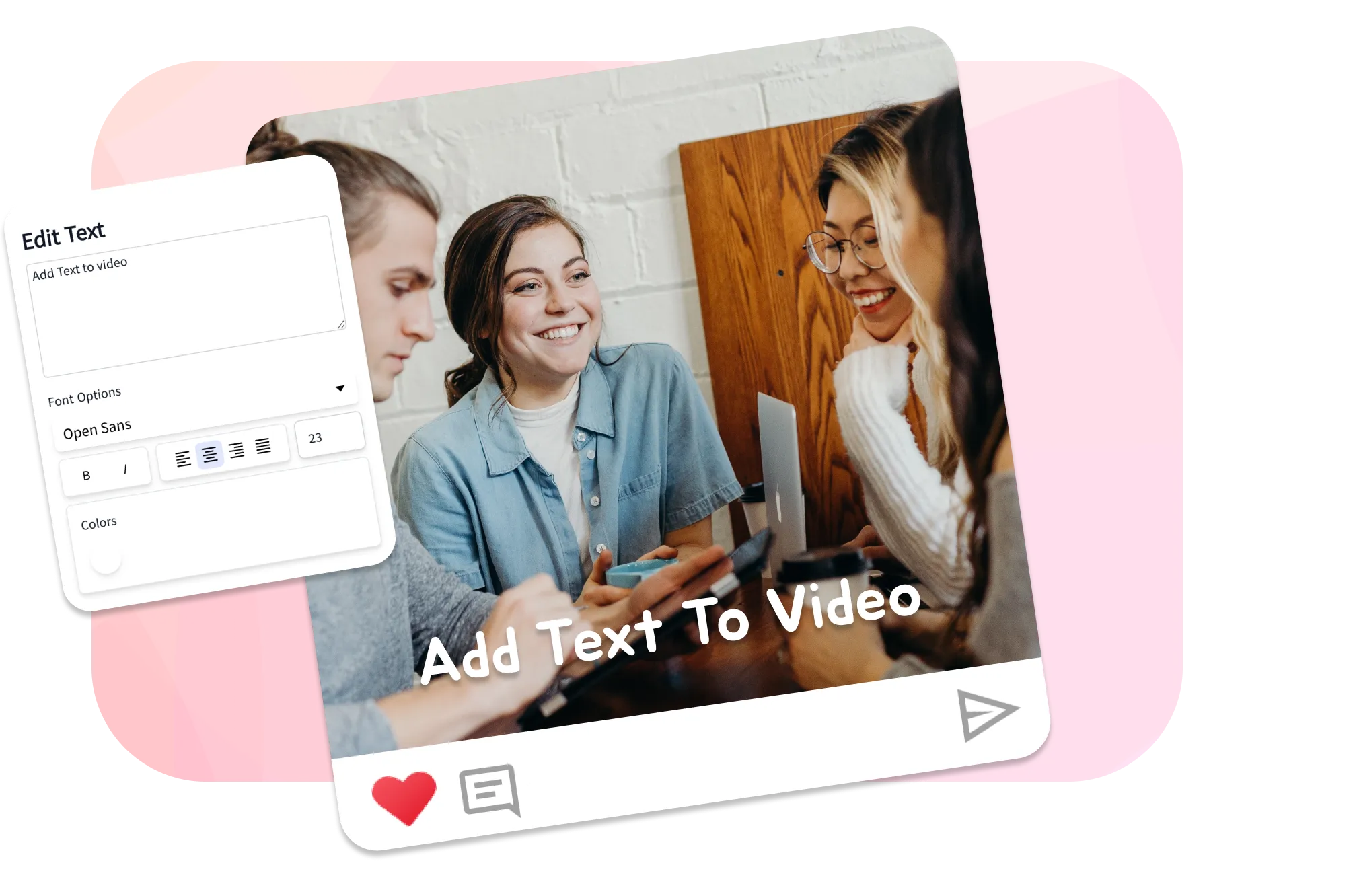
Make the text match the video. Change the font, size, color, stroke, shadow, background, opacity, alignment, spacing, and position so it stays readable on the footage.
-
4. Set timing, captions, or translation
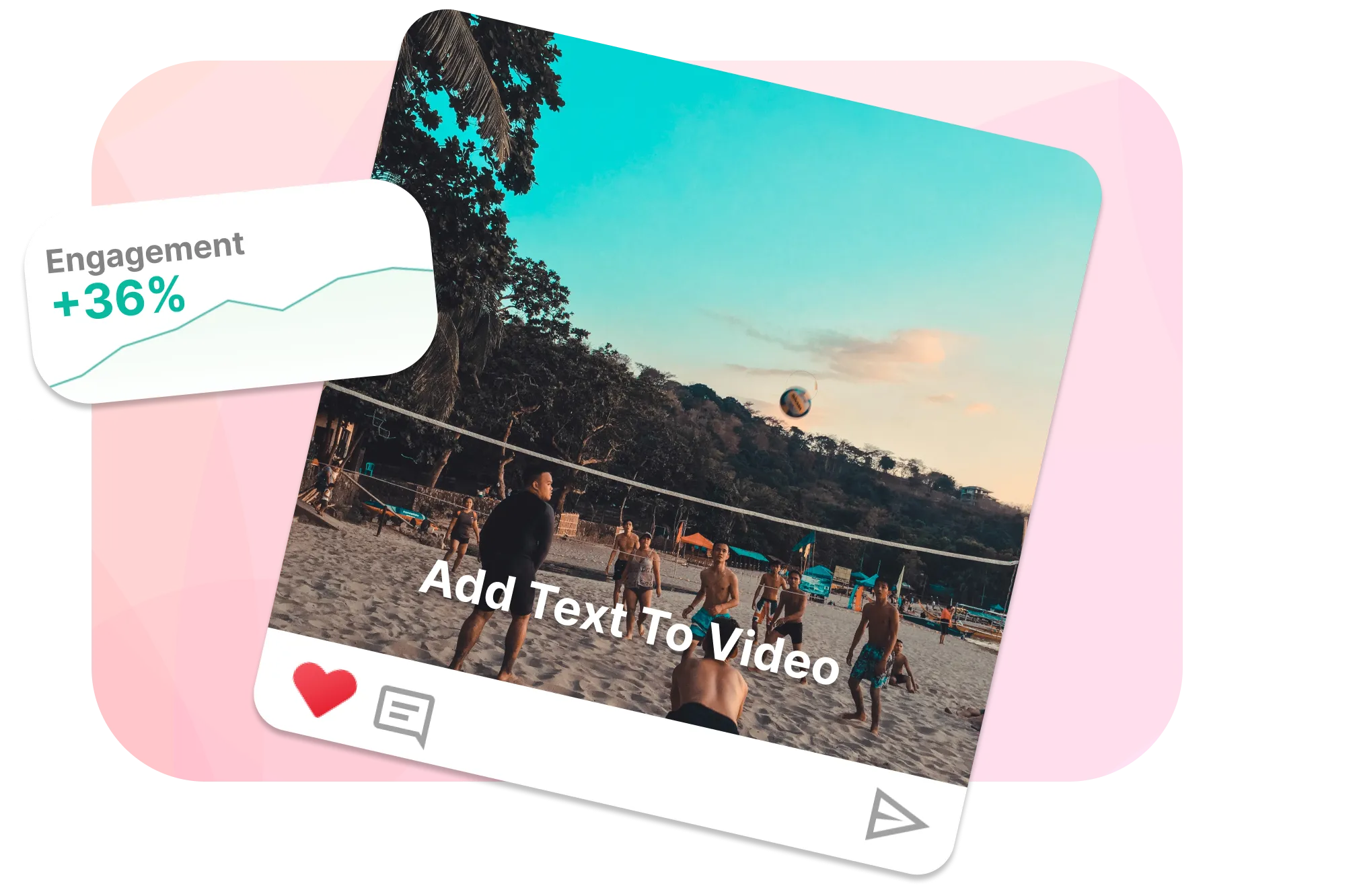
Drag the text layer on the timeline so it appears at the right moment. For spoken words, generate captions or translate subtitles, then edit the wording before export.
-
5. Export and share
Preview the edit at the size people will watch it, check mobile safe zones, then export. The text is baked into the MP4 so it stays fixed on YouTube, TikTok, Instagram, LinkedIn, websites, and ads.
What creators say after trying EchoWave
A text tool that still behaves like a video editor
EchoWave is used by creators, marketers, and teams around the world




Use the right text layer for each moment
Add text to video for every kind of clip
Most feeds autoplay on mute, so the first thing a viewer reads is your on-screen text, not your voiceover. The goal is not to cover the video with words. The goal is to make the important moment easier to understand before someone scrolls away.
Social media videos
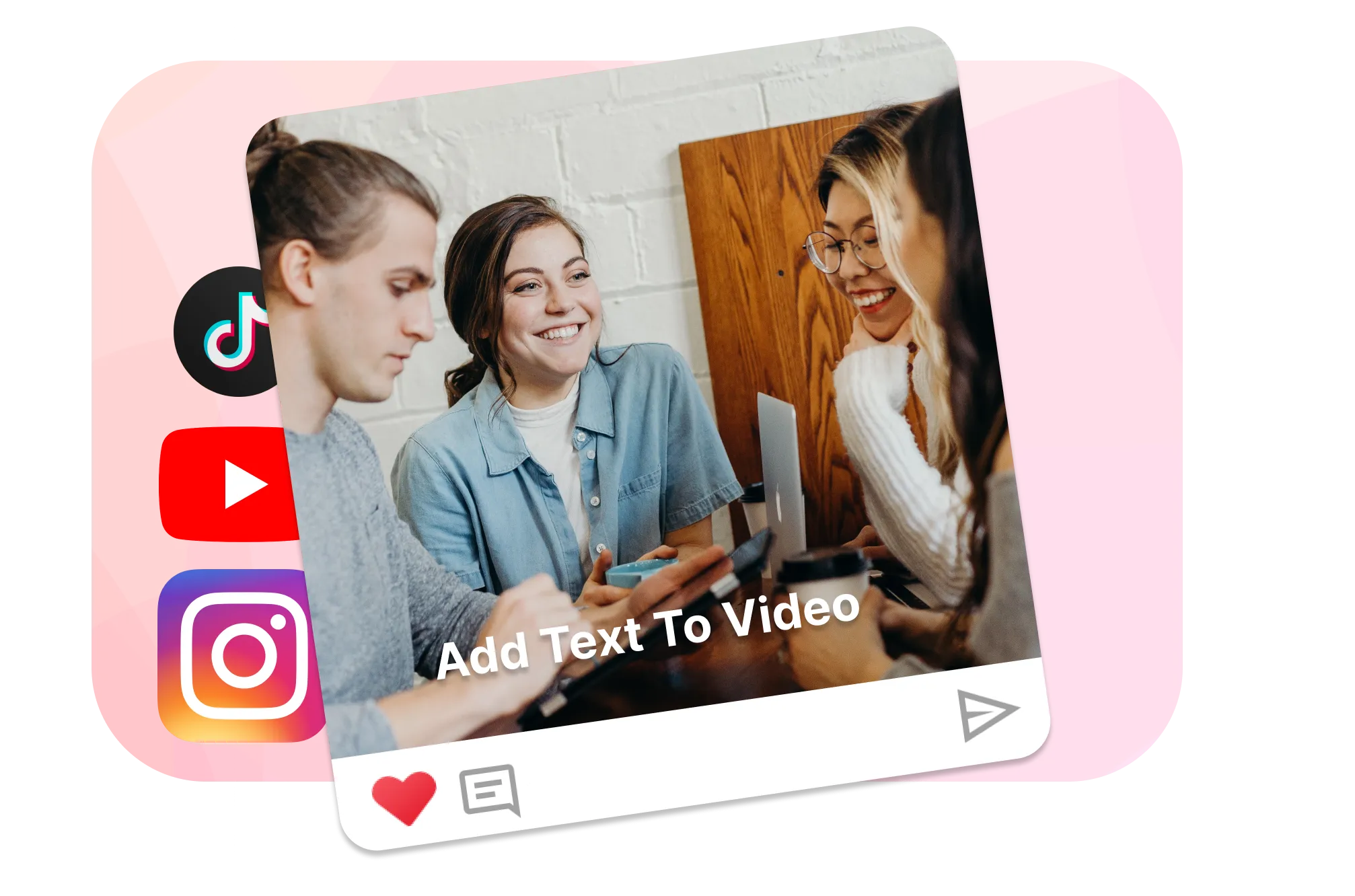
Add a bold hook in the first two seconds for TikTok, Instagram Reels, YouTube Shorts, Facebook, LinkedIn, and paid social ads. Keep each line short, use a large font size, and place the words in the middle third of the frame so platform captions, usernames, and like/share buttons do not cover them.
YouTube videos
Add intro titles, chapter labels, speaker names, sponsor notes, source citations, and end-screen prompts before you upload. For widescreen YouTube, keep titles inside the safe area so nothing is clipped on a TV. Want a dedicated walkthrough? See our add text to YouTube video guide.
Tutorials and screen recordings
Label buttons, show step numbers, call out settings, and add short notes when an action on screen needs extra context. Time each label to appear only while it is relevant, then have it leave before it covers the next step.
Product demos and ads
Call out features, prices, product names, discount codes, benefits, and a clear next step. Add a background box behind text when the footage is busy or the colors shift, so the offer stays readable from the first frame to the last.
Talking head videos and interviews
Use lower thirds for names and roles, quote pullouts for important lines, and dynamic captions for the moments that viewers should not miss. These text overlays make interviews, testimonials, webinars, and podcast clips easier to scan.
Podcast and music clips
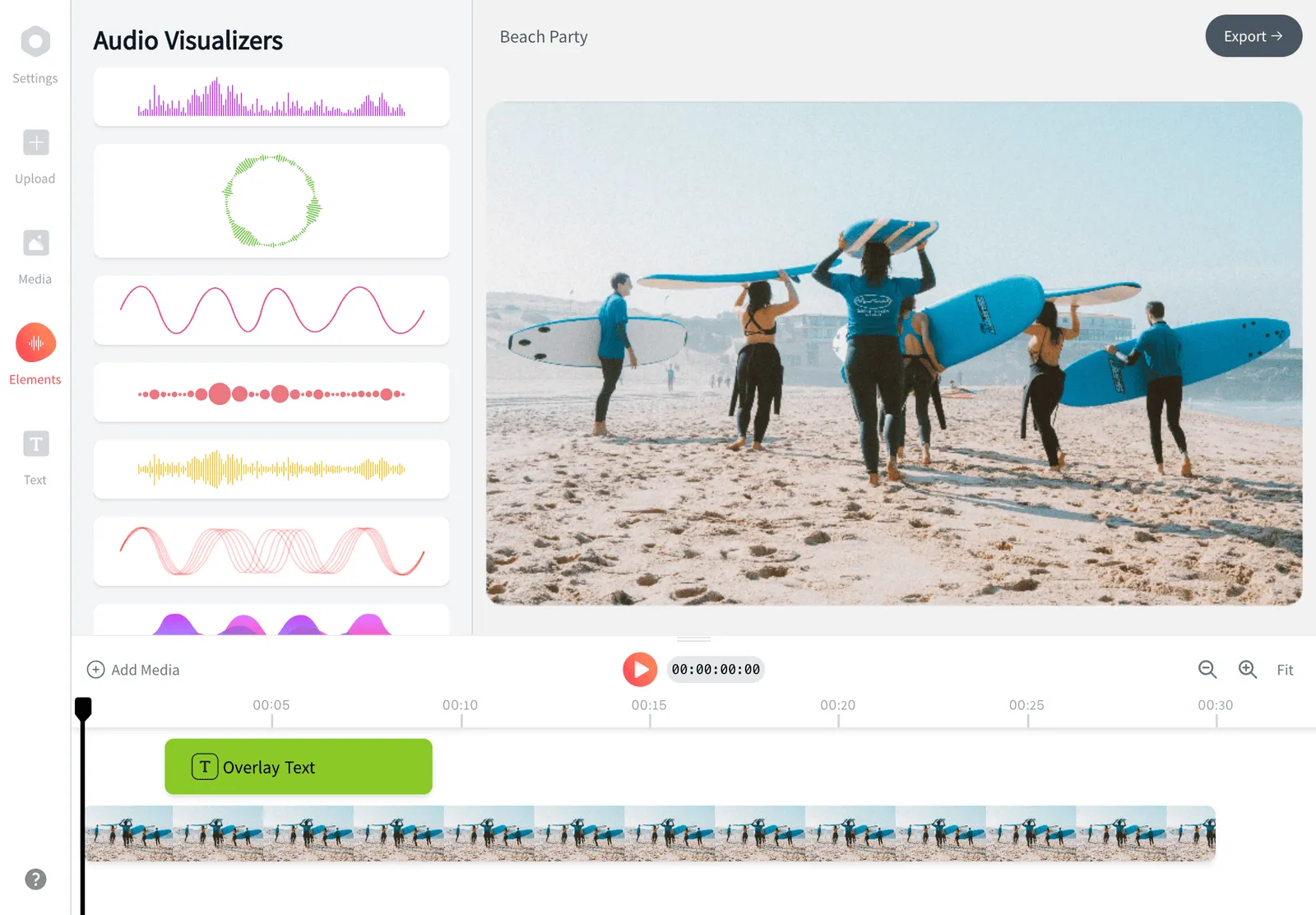
Turn an audio clip into a shareable video with quote text, speaker names, waveform visuals, progress bars, and captions. EchoWave also has dedicated tools for podcast videos, audio waveform videos, and lyric videos.
Memes and reaction clips
Add top text, bottom text, a quick reaction, or a short punchline to a video meme. The classic meme look uses a heavy white font with a black outline, which you can set with the stroke control so the words read on any background. For GIF-specific editing, use our add text to GIF tool.
What you can change on each text layer
Every text box is its own layer with its own settings, which is what makes a real edit possible rather than one fixed caption. On each layer you can set:
- Font and font style: pick from 1,000+ Google Fonts, adjust weight, and use custom fonts on business plans for brand-controlled text overlays.
- Font size and spacing: scale text for vertical, square, or widescreen video, then tune line height and spacing so long words still fit.
- Font color and stroke: set fill color, outline, shadow, and contrast so the words read on bright, dark, or changing footage.
- Text background and opacity: add a solid, rounded, or transparent backing box when the video is busy, or keep the overlay clean with no box.
- Text alignment and position: align left, center, or right, then drag the text box anywhere on the editing canvas.
- Text animations: apply fade, pop, slide, swipe, lift, bounce, or typewriter-style animation presets for static text, moving text, titles, and CTAs.
- Timeline duration: set a start and end time so each line appears at the right moment and leaves before it gets in the way.
Because layers stack, you can run an intro title, a topic label, a dynamic caption, a quote highlight, and a closing call to action across one clip, each appearing on its own schedule.
Plan the text before you export
The best text overlays are deliberate. Before you export, scan the timeline and make sure every text layer earns its place:
- Hook: one short title near the start that tells viewers why the clip is worth watching.
- Explain: captions, subtitles, or tutorial labels that make speech and actions easier to follow.
- Identify: a lower third, source label, place name, or product name when the viewer needs context.
- Emphasize: a quote highlight, price, number, benefit, or warning that should stand out from the rest of the video.
- Direct: a call to action at the end, such as subscribe, buy now, book a demo, visit a link, or watch the next clip.
If a line does not do one of those jobs, remove it or make it shorter. Cleaner text usually performs better than more text.
Access 1,000+ fonts and custom brand styles
Choose from a large Google Fonts library, adjust font weight, and keep titles, labels, lower thirds, subtitles, and captions consistent across every video.
Need full brand control? Business plans can upload custom fonts for text overlays that match your brand kit.
Make videos easier to watch without sound
Text gives viewers the point of the video even when sound is off. Add short captions, auto captions, dynamic word highlighting, labels, and speaker names so people can follow the story in a feed, on a commute, or in a quiet room.
Animated text for titles and calls to action
Use fade, swipe, pop, slide, lift, bounce, or typewriter-style effects when you want text to enter at the right moment. Keep motion subtle for tutorials and clearer for ads, promos, and social posts.
Auto captions, subtitles, and translation
Manual text overlays and automatic captions solve different problems. Use manual text for titles, labels, lower thirds, meme text, and calls to action. Use captions when viewers need to follow spoken words.
With EchoWave, a single project can combine both:
- Auto captions: turn speech into timed caption text, then edit the words before export.
- Dynamic captions: use animated caption styles and word highlighting for talking head clips, Reels, TikToks, Shorts, interviews, and podcasts.
- Subtitle translation: translate captions into another language for multilingual audiences.
- Manual overlays: add separate headings, speaker names, product labels, and CTAs above the caption track.
If captions are the main job, start with the add subtitles workflow. If you need titles, labels, and design control around the captions, stay in the full text editor on this page.
Pre-made text styles and templates
Templates should speed up the edit, not lock you into a generic look. Start with a text style when you need a fast layout, then customize it until it fits the clip. Useful starting points include:
- Animated title styles for intros, hooks, announcements, and section breaks.
- Caption styles for talking head clips, interviews, podcasts, Reels, TikToks, and Shorts.
- Lower thirds for names, roles, locations, guest labels, and source credits.
- Meme layouts with top text, bottom text, heavy fonts, outlines, and high contrast.
- Tutorial labels for screen recordings, product walkthroughs, explainers, and course videos.
- CTA overlays for sales, signups, discount codes, subscribe prompts, and end screens.
After choosing a style, change the font, color, size, opacity, animation, position, background, and timing on every text box.
Troubleshooting text overlays
If the text does not look right, the fix is usually practical rather than technical:
- Text is hard to read: add a background box, stroke, or shadow; increase font size; or move the text away from busy footage.
- Text appears for the whole video: shorten the text layer on the timeline so it starts and ends around the relevant moment.
- Text is covered on social media: move it away from the bottom third and right edge, where captions, usernames, and buttons often appear.
- Text will not move: select the text box on the canvas or the text layer in the timeline, then drag from inside the box.
- A long word does not fit: reduce font size, split the line, widen the text box, or choose a narrower font style.
- Multiple clips need the same text: place the text layer above the clips it should cover, then adjust the start and end handles.
- The upload has compatibility issues: convert unusual footage to MP4 first or try the standard EchoWave editor import; HEVC and camera formats can vary by device.
For the cleanest result, preview the video at phone size before export. If you can read the text quickly on mobile, it will usually work everywhere else.
Supported video formats and compatibility
Most people arrive with whatever file their phone, camera, meeting app, or screen recorder created. EchoWave is designed for common imports such as MP4, MOV, WebM, AVI, MKV, M4V, MPEG, WMV, FLV, HEVC, and typical iPhone, Android, webcam, and camera clips. If a codec cannot preview directly in the browser, upload and processing may still run through EchoWave's video engine, so format issues are less likely to block the edit. The final export is a standard MP4 video file.
You can add text to one clip or multiple video files in the same project. Text layers sit above the timeline, so a title can cover the whole edit, a lower third can appear over one interview clip, and a caption can match one spoken sentence.
Choose the right size and safe zone for each platform
Text sits inside the frame, so the aspect ratio you choose decides where it can go. The ratios that matter:
- 9:16 vertical (1080 by 1920) for TikTok, Instagram Reels, and YouTube Shorts. Keep words in the center band and clear of the bottom third, where captions and buttons sit.
- 1:1 square (1080 by 1080) for in-feed Instagram and Facebook posts, which crop well on both phones and desktops.
- 4:5 portrait (1080 by 1350) for Instagram and Facebook feed posts where you want more vertical room than square.
- 16:9 widescreen (1920 by 1080) for YouTube, websites, webinars, and LinkedIn, where titles and lower thirds have more room across the frame.
Match your text size to the ratio rather than a fixed point size. A title that looks balanced on widescreen can feel tiny on a 9:16 phone clip, so scale it up until it reads at a glance.
Export your video with the text baked in
The text you add is rendered into the final video, not stored as a separate caption track, so it stays exactly where you placed it after you upload to YouTube, TikTok, Instagram, LinkedIn, or anywhere else. Adding text does not force a lower-resolution export; the overlay is composited on top and the video keeps the resolution you choose.
Adding text is free. Exports from the full editor include a small EchoWave watermark on the free plan, which you can remove anytime by upgrading. If you only need a quick edit with no watermark, EchoWave's dedicated tools for cropping, trimming, compressing, and converting export with no watermark.
Add text to a video on iPhone, iPad, Android, or desktop
You do not need a separate app to add text to a video. EchoWave runs in your browser, so you can open the editor on an iPhone, iPad, Android device, Chromebook, Mac, or Windows computer, upload a clip from your camera roll or files, and start typing. There is nothing to install and no account required to begin.
The full editor works the same on a small screen: tap to place text anywhere, pick from 1,000+ fonts, set color and background, animate the layer, and choose when it appears. When you are done, export the finished video straight from your phone and post it to TikTok, Reels, Shorts, YouTube, or LinkedIn.
Your video stays private while you edit
Editing happens in your project workspace, so you are not uploading clips to a public gallery or handing them to a shared social editor first. Your footage is used to build your edit and export your video, nothing more. That makes EchoWave a comfortable fit for client work, internal training videos, product demos, school projects, and anything you would rather not post publicly before it is finished.

About the EchoWave team
EchoWave is a browser-based video and audio editor built by Lemon Vault LLC since 2018. The people who build the editor write these guides and test every step in the production app before publishing.
Add text to video FAQ
Common questions about adding readable text overlays, captions, subtitles, templates, timing, formats, and exports.
How do I add text to a video online?
Upload your clip, open the Text tab, click Add Text, type your words, then set the font, color, size, position, animation, and timing. Export the finished video as an MP4 from your browser.
Is it free to add text to a video?
Yes. EchoWave is free to start with no signup required. Exports from the full editor include a small EchoWave watermark on the free plan, which you can remove by upgrading. Dedicated quick tools like crop, trim, and compress export with no watermark.
What is the best free video editor to add text?
The best free option is one that lets you control placement and timing, not just paste one caption over the whole video. EchoWave gives you text overlays, captions, fonts, backgrounds, animation presets, custom timing, and MP4 export in one browser editor.
Can I generate captions automatically?
Yes. Use EchoWave's add subtitles workflow to auto-transcribe speech, create timed captions, and style them before export. You can still add manual titles, labels, and lower thirds in the same project.
Can I translate subtitles into another language?
Yes. After creating captions, use EchoWave's subtitle translation workflow to translate subtitles for multilingual audiences. You can combine translated subtitles with manual text overlays such as titles, lower thirds, and calls to action.
Can I change the font, color, size, and style of the text?
Yes. You can change font, font style, font size, font color, stroke, shadow, background, opacity, alignment, spacing, position, animation, and timing. Business plans can upload custom fonts for branded text overlays.
Can I use pre-made text styles or templates?
Yes. Start with styles for titles, captions, lower thirds, meme text, tutorial labels, and CTA overlays, then customize the font, color, background, animation, position, and timeline duration.
Can I animate text on a video?
Yes. Use animation presets such as fade, pop, slide, swipe, lift, bounce, or typewriter-style motion. Each text layer can have its own animation and timing.
Can I add multiple text boxes to one video?
Yes. Add as many titles, captions, subtitles, labels, lower thirds, quote highlights, and calls to action as you need. Each one is its own layer with its own style, position, and timing.
How do I make text appear at a specific time?
Select the text layer on the timeline, then drag its start and end handles. This lets a title appear for the first three seconds, a label appear over one clip, or a CTA show only at the end.
Which video formats can I use?
EchoWave works with common imports such as MP4, MOV, WebM, AVI, MKV, M4V, MPEG, WMV, FLV, HEVC, and most phone camera clips. The final export is a standard MP4 video file.
Can I add text to a video on iPhone or Android?
Yes. EchoWave runs in a mobile browser, so you can upload a clip from your camera roll, add text, style it, set timing, and export without installing a separate app.
Can I add text to a TikTok, Reel, or YouTube Short?
Yes. Use a 9:16 vertical project for TikTok, Instagram Reels, and YouTube Shorts. Keep important words in the center band and away from the bottom third, where platform captions and buttons often sit.
How do I add meme text with a black outline?
Choose a heavy font, set the fill to white, turn on stroke, and make the stroke black. Place one text box at the top and another at the bottom for the classic meme layout.
Why can't I move or see my text?
Make sure the text box is selected on the canvas or the text layer is selected on the timeline. If the text is hidden, check that its timeline start and end points overlap the playhead and that the color contrasts with the video.
Does adding text reduce video quality?
No. The text is composited on top of your footage during export. Choose the export resolution you want, and the words stay sharp in the final MP4.
Do I need an app to put text on a video?
No. EchoWave is an online video editor, so you do not need a special text-on-video app. Open it in your browser, upload a clip, add a text overlay, and export.
Add text to your video Free online editor
Open the browser editor, add the text your video needs, set the timing, and export an MP4. Free exports include a small EchoWave watermark, and paid plans remove it.
Add text now