M4A to WAV Converter
Turn compressed Apple M4A audio into an uncompressed WAV file ready for editing. Free, in your browser, with no signup and no watermark.


M4A to WAV Converter Features
EchoWave is used by creators, marketers, educators, and businesses to convert and edit media online.





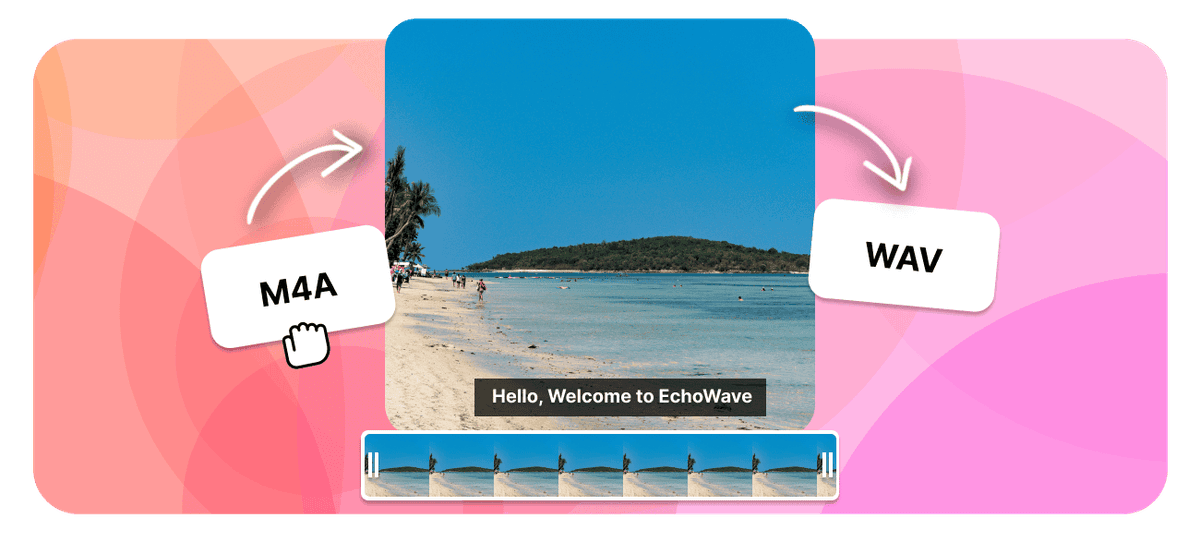
M4A is the compact AAC audio Apple uses for Music and iPhone Voice Memos, while WAV is uncompressed PCM that audio editors and samplers prefer to work with. EchoWave converts M4A to WAV in your browser, free and with no signup, so you can drop the file straight into a DAW, a sampler, or a transcription tool. WAV files are far larger because nothing is squeezed out, but they open cleanly in any audio editor.
How it works
How to convert M4A to WAV
- 1
Upload your M4A
Drag your M4A onto the converter or pick it from your device. Nothing to install.
- 2
Choose WAV and convert
Select WAV as the output, set the bitrate if it applies, then start. Free, with no sign-up.
- 3
Download your WAV
Save the finished WAV, or open it in the editor to trim or adjust it first.
Try it
Estimate your WAV
Pick a quality and a length to see the WAV file size before you convert.
Drag to set the clip length in minutes, from 1 to 60.
WAV is uncompressed, so the size depends only on the quality and length you pick.
The formats
M4A vs WAV
MPEG-4 Audio
Apple-friendly AAC audio
- Type
- Lossy audio, usually AAC
- Holds
- AAC audio in an MP4 container
- Typical size
- Small, smaller than MP3 at the same quality
- Plays on
- iPhone, Mac, iTunes, and most players
Best for:Apple devices and clean compressed audio
Waveform Audio File Format
Uncompressed studio-quality audio
- Type
- Uncompressed audio
- Holds
- Raw PCM audio, no compression
- Typical size
- Very large, about 10 MB per minute
- Plays on
- Every device and audio editor
Best for:Editing and mastering at full quality
Will it lose quality?
- Converting a lossy file to a lossless one cannot restore detail that was already discarded. It only makes a larger file.
- Going from a high-quality source to WAV keeps the sound clear while changing the format.
- Each pass between two lossy formats loses a little, so always convert from the best source you have.
Use cases
What people use it for
Troubleshooting
If something looks off
The WAV is larger than I expected
The song details are missing
My app will not open the WAV
FAQ
M4A to WAV questions
Is the M4A to WAV converter free?
Does converting M4A to WAV improve the audio quality?
Why is the WAV file so much bigger than the M4A?
Why convert M4A to WAV?
Can I convert M4A to WAV on iPhone, Mac, Android, and Windows?
Does the WAV keep the song title and artist from the M4A?
Can I convert long recordings or several files?
What opens the WAV after I convert from M4A?
Should I use WAV or FLAC instead?
What is an M4A file?
Do I need to install software to convert M4A to WAV?
How big will my WAV file be?
What sample rate and bit depth should I pick?
Can I convert a long recording or several M4A files?
Is there a watermark on the converted WAV?
Why convert M4A to WAV
M4A is compressed audio, almost always AAC, and it is what Apple hands you from the Music store, from Voice Memos, and from a QuickTime or GarageBand export. It is an efficient format for listening. It is a slightly awkward one for working, and that is the gap this conversion fills.
WAV is uncompressed PCM: the raw waveform, stored sample by sample, with nothing squeezed out and nothing to unpack. That matters in three practical situations.
- Editing and mastering. Every time a lossy file is decoded, altered, and re-encoded it loses a little more, and those losses stack across a session. Working in WAV means the file you are cutting, levelling, and processing is not quietly degrading underneath you each time you save.
- DAWs and samplers. Ableton Live, Logic, Pro Tools, Reaper, Audacity, and hardware samplers all read WAV natively and instantly. Some tools will import M4A and some will refuse it outright; effectively none refuse WAV.
- Tools and hardware that only accept WAV. Transcription services, speech tools, older recorders, CD authoring, and a fair amount of embedded and broadcast kit list WAV as the only format they will take.
If your file is going into any of those, converting first saves you from discovering halfway through that your editor cannot open it.
Converting an M4A to WAV step by step
- Add your M4A. Drag it in or pick it from your device. Voice Memos recordings usually need saving into Files on an iPhone or iPad before the browser's picker can see them; on a Mac or PC they are visible immediately. Nothing installs and no account is required.
- Choose WAV as the output. There is no bitrate to weigh up the way there is with MP3, because WAV is uncompressed. What you are choosing instead is a quality tier, and the estimator higher up this page shows what each one costs in megabytes.
- Convert and download. Save the WAV, or open it in the editor first to trim the dead air off the front of a recording so you are not carrying it into your session.
The conversion runs on our servers rather than on your machine, so a long recording does not lean on your laptop or phone. There is no file-count limit, so a folder of voice memos can be worked through one after another.
Expect the WAV to be roughly ten times bigger
This is the part that surprises people, so it is worth setting expectations before you start a download. Uncompressed audio has a fixed cost per minute that depends only on the sample rate, the bit depth, and the number of channels, never on the content:
- Voice, 16-bit mono works out around 705 kbps, or roughly 5 MB per minute.
- CD quality, 16-bit stereo is 1411 kbps, or roughly 10 MB per minute. This is the standard choice and the one most tools expect.
- Studio, 24-bit stereo is 2304 kbps, or roughly 17 MB per minute.
Against that, a typical M4A might sit near 1 MB per minute. So a ten-minute voice memo of about 10 MB becomes something near 100 MB as a CD-quality WAV, and an hour-long interview turns into something in the region of 600 MB. Nothing has gone wrong when that happens. It is simply the price of storing every sample rather than a compressed approximation of them, and it is the reason a long WAV takes noticeably longer to download than the M4A it came from.
The trade is worth making when the file is going into an editor. It is not worth making just to store or listen, and one honest warning belongs here: converting M4A to WAV does not improve the audio. AAC is lossy, so detail was discarded when the M4A was created, and wrapping what remains in an uncompressed container cannot bring any of it back. The WAV is only ever as good as the M4A you started with. What you gain is a file that edits cleanly and opens everywhere, not a better-sounding one.
If you only want a lossless copy to archive rather than to edit, M4A to FLAC holds identical quality at roughly half the size of WAV, which makes it the better choice for storage.
Using the WAV once you have it
Dropping the file into a DAW is the common next step, and WAV imports without a conversion dialog or a transcode wait in every one of them. For sampling work, a WAV can be sliced, pitched, and stretched without the artefacts that compressed sources tend to expose once you push them around, which is why sample libraries ship as WAV rather than as AAC or MP3.
Transcription and speech tools are the other frequent destination, and many of them either require WAV or handle it more reliably than compressed formats. A voice memo recorded on an iPhone, converted to WAV, is a well-trodden path into exactly that kind of tool.
One thing to plan for: WAV carries tags poorly. Title, artist, and album survive comfortably in an M4A but WAV has only limited support for that kind of metadata, so some players will show less information than you expect, or fall back to the filename. The audio itself always converts in full. Name your files sensibly on the way in and add proper details afterwards in your music app or editor.
Related conversions and tools
Going back the other way, WAV to M4A re-compresses a finished file for listening and storage once the editing is done. WAV to MP3 does the same job when you want the most universally playable result.
For other routes out of M4A, M4A to MP3 is the choice when compatibility matters more than editing headroom, and M4A to FLAC is the one for lossless archiving. Once your WAV files are ready, the audio merger joins takes and segments into a single track, and the audio cutter handles trimming before you import anything.
What people are saying about EchoWave

About the EchoWave team
EchoWave is a browser-based video and audio editor built by Lemon Vault LLC since 2018. The people who build the editor write these guides and test every step in the production app before publishing.
Convert M4A to WAV for free Free online converter
Upload an M4A and get an uncompressed WAV ready to edit. No signup, no file limits, and no watermark.
Convert Files →
Keep converting