WAV to MP3 Converter
Turn a heavy WAV into a small MP3 that plays on any phone, car stereo, or app. Free, in your browser, with no signup and no watermark.


WAV to MP3 Converter Features
EchoWave is used by creators, marketers, educators, and businesses to convert and edit media online.





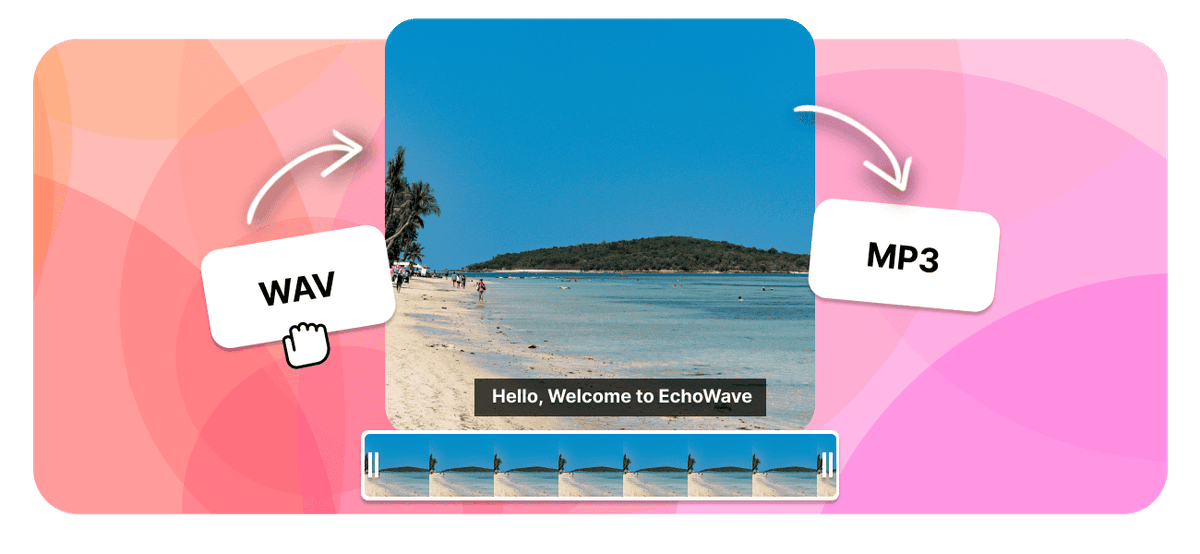
WAV is uncompressed, so a three-minute recording can be around 30 MB. Converting it to MP3 compresses that to roughly 3 MB while keeping the sound clear enough that most people cannot tell the difference. The trade is simple: MP3 is far smaller and plays on effectively every phone, browser, and player, which makes it the easiest format to email, upload, or carry around.
How it works
How to convert WAV to MP3
- 1
Upload your WAV
Drag your WAV onto the converter or pick it from your device. Nothing to install.
- 2
Choose MP3 and convert
Select MP3 as the output, set the bitrate if it applies, then start. Free, with no sign-up.
- 3
Download your MP3
Save the finished MP3, or open it in the editor to trim or adjust it first.
Try it
Estimate your MP3
Pick a bitrate and a length to see the MP3 file size before you convert.
Drag to set the clip length in minutes, from 1 to 60.
An estimate. Real size varies a little with the encoder and the audio itself.
The formats
WAV vs MP3
Waveform Audio File Format
Uncompressed studio-quality audio
- Type
- Uncompressed audio
- Holds
- Raw PCM audio, no compression
- Typical size
- Very large, about 10 MB per minute
- Plays on
- Every device and audio editor
Best for:Editing and mastering at full quality
MPEG-1 Audio Layer III
The most universal audio format ever made
- Type
- Lossy audio format
- Holds
- Audio only
- Typical size
- Small, about 1 MB per minute at 128 kbps
- Plays on
- Effectively everything
Best for:Music, podcasts, and audio you listen to
Will it lose quality?
- Converting a lossy file to a lossless one cannot restore detail that was already discarded. It only makes a larger file.
- Going from a high-quality source to MP3 keeps the sound clear while changing the format.
- Each pass between two lossy formats loses a little, so always convert from the best source you have.
Use cases
What people use it for
Troubleshooting
If something looks off
The MP3 is larger than I expected
The song details are missing
My app will not open the MP3
FAQ
WAV to MP3 questions
Why convert WAV to MP3?
How much smaller is an MP3 than a WAV?
Will I hear a quality drop converting WAV to MP3?
What MP3 bitrate should I choose when converting WAV to MP3?
Is the WAV to MP3 converter free?
Does the WAV to MP3 converter work on iPhone, Android, Mac, and Windows?
Do the song details carry over to the MP3?
Can I convert several WAV files?
How long does converting WAV to MP3 take?
Once I convert WAV to MP3, what opens the file?
Why convert WAV to MP3
WAV stores raw, uncompressed PCM audio. Every sample is written out in full, which is exactly what you want on a recording desk and exactly what you do not want in an email attachment. The arithmetic is unforgiving: stereo CD-quality WAV runs about 10 MB per minute, so a three-minute song lands near 30 MB and an hour-long interview passes 600 MB.
MP3 compresses that same audio by discarding the parts of the signal human hearing is least likely to miss, a technique called perceptual coding. At 128 kbps a minute costs roughly 1 MB, so the three-minute song becomes about 3 MB. That is the ten to one reduction that makes the conversion worth doing.
Size is only half the reason. The other half is reach. WAV is well supported on computers, but MP3 is the format that car stereos, podcast hosts, Bluetooth speakers, old MP3 players, learning platforms, and every browser accept without question. When a file has to leave your machine and land somewhere you do not control, MP3 removes the guesswork.
Three situations where the conversion is close to mandatory:
- Podcast delivery. Most podcast hosts want MP3, and many cap the upload size per episode. An hour of speech as WAV is impractical to upload; the same hour at 96 to 128 kbps mono is a comfortable 30 to 45 MB.
- Email and messaging. Gmail, Outlook, and iCloud cap attachments at 20 to 25 MB. A WAV clears that limit after roughly two minutes of audio. An MP3 of the same recording clears it after about twenty.
- Storage and sync. A field recorder or a voice memo archive fills a drive quickly in WAV. Converting the finished takes to MP3, and keeping WAV masters only for material you still intend to edit, is the usual compromise.
What you give up is editing headroom, not everyday listening quality. MP3 is lossy, so each re-encode costs a little more detail. Keep the WAV if the audio is still going back into a mix, and convert to MP3 once it is finished and ready to be heard.
How to convert WAV to MP3
The whole job runs in a browser tab, so there is nothing to install on Windows, macOS, a Chromebook, or a phone.
- Add your WAV file. Drag it onto the converter or browse for it. Recordings from a field recorder, a DAW bounce, the Windows voice recorder, or a ripped CD track all work the same way.
- Choose MP3 as the output and set a bitrate. This is the one decision that matters. Pick 320 kbps for music you care about, 192 to 256 kbps for general listening, and 128 kbps for speech, interviews, and anything heading into an email.
- Convert and download. The encode runs on our servers rather than in your browser tab, so an older laptop or a phone finishes about as quickly as a workstation. Download the MP3 when it is ready, with no watermark and no account.
If the recording needs work before it ships, open it in the editor first. Trimming silence off the front and back, or cutting a long take down to the section you actually want, removes whole seconds of audio before any encoding happens, which is the cheapest file size saving available.
How creators use EchoWave in real projects
Which MP3 bitrate should you choose?
Bitrate is how much data each second of audio is allowed to use, and it is the only lever that meaningfully trades size against quality. The useful thing to understand is that the right answer depends on the material, not on wanting the highest number available.
- 320 kbps is the MP3 ceiling, roughly 2.4 MB per minute. Use it for music you want to keep, anything with cymbals, strings, or wide stereo, and any file that might be re-encoded later.
- 256 kbps is close to transparent for most listeners on most systems, at about 1.9 MB per minute. A sensible default for a music library.
- 192 kbps is the honest middle, near 1.4 MB per minute. Fine for casual listening and background music.
- 128 kbps is about 1 MB per minute and is the standard choice for speech. Podcasts, lectures, interviews, and voice notes sound fine here, because the human voice occupies a narrow band that MP3 handles well.
- 96 kbps and below starts to sound obviously thin on music, but stays usable for mono speech when the file has to be very small.
Two things are worth knowing. A higher bitrate cannot add detail your WAV did not capture, so encoding a phone voice memo at 320 kbps just produces a larger file that sounds identical. And mono is a free halving for anything recorded from a single microphone, because a solo voice in stereo is storing the same signal twice.
If you are converting a folder of tracks, pick one bitrate and stay with it. A library where some albums sit at 128 and others at 320 produces noticeable jumps in clarity when a playlist shuffles across them.
What happens to your tags, and what to do next
ID3 tags carry the title, artist, album, and artwork your music app displays. When the source WAV already holds that metadata it travels into the MP3. Plain recordings often have no tags at all, since WAV was never really designed to carry them, so a converted voice memo may arrive with nothing but a filename. Any music app or tag editor can fill that in afterwards.
Keep your WAV masters if the material might be edited again. The MP3 is a delivery copy, and converting it back later will not restore anything: MP3 to WAV produces a large file that still sounds like the MP3, which is useful when the MP3 is genuinely all you have left and you need to import it into a DAW, but it is not a way to undo compression.
For other destinations, WAV to M4A gives slightly better quality than MP3 at the same bitrate and suits Apple devices, while WAV to FLAC compresses losslessly and typically halves the size with no quality change at all, which is the right choice if you are only trying to reclaim disk space. If your audio is coming out of a video file rather than a recorder, MP4 to MP3 does that step directly, and the audio converter covers the remaining formats.

About the EchoWave team
EchoWave is a browser-based video and audio editor built by Lemon Vault LLC since 2018. The people who build the editor write these guides and test every step in the production app before publishing.
Convert WAV to MP3 for free Free online converter
Upload a WAV and get a small, universal MP3 back, with no signup and no watermark.
Convert Files →
Keep converting