
MOV to MP4 Converter
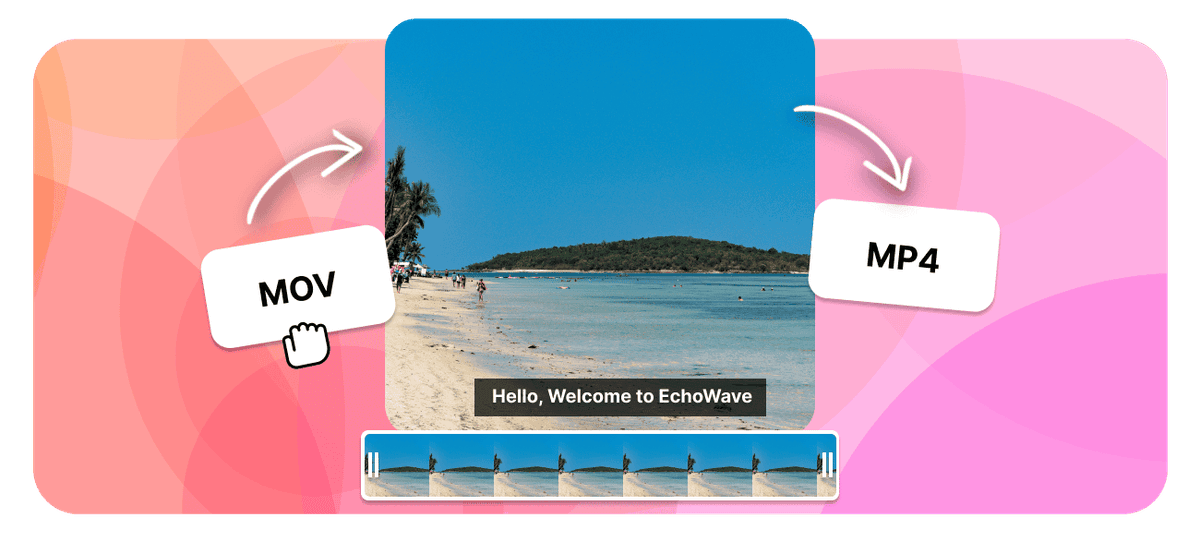
Turn an iPhone or QuickTime MOV into an MP4 that plays on any phone, browser, and editor. Free, in your browser, no signup.


MOV to MP4 Converter Features
EchoWave is used by creators, marketers, educators, and businesses to convert and edit media online.





Your iPhone and Mac record MOV, but plenty of apps, websites, and Android phones would rather have MP4. This converter changes the container in your browser so the same footage becomes a clean MP4 that uploads and plays almost anywhere. When the MOV already uses H.264, EchoWave can swap the wrapper without re-encoding, so the picture stays exactly as it was, free and with no signup.
How it works
How to convert MOV to MP4
- 1
Upload your MOV
Drag your MOV onto the converter or pick it from your device. Nothing to install.
- 2
Choose MP4 and convert
Select MP4 as the output and start. Free, with no sign-up and no watermark.
- 3
Download your MP4
Save the finished MP4, or open it in the editor to trim, crop, or resize it first.
Try it
Estimate your MP4
Pick a video bitrate and a length to see the MP4 file size before you convert.
Drag to set the clip length in minutes, from 1 to 30.
An estimate. Real size varies with resolution, frame rate, and how much the picture moves.
The formats
MOV vs MP4
QuickTime File Format
Apple QuickTime video, common on iPhone and Mac
- Type
- Video container (QuickTime)
- Holds
- H.264 or HEVC video with AAC audio
- Typical size
- Large, often bigger than MP4
- Plays on
- iPhone, Mac, QuickTime, most modern players
Best for:Recording and editing on Apple devices
MPEG-4 Part 14
The video format that plays everywhere
- Type
- Video container
- Holds
- H.264 video plus AAC audio, sometimes subtitles
- Typical size
- Large, it carries video
- Plays on
- Phones, browsers, TVs, almost any player
Best for:Watching and sharing video
Will it lose quality?
- When the codecs already match MP4, the converter can change the container without re-encoding, so the picture stays identical.
- When the video has to be re-encoded for MP4, a high bitrate keeps it visually close to the MOV.
- Converting cannot add detail the MOV never had. The output is at best as good as the source.
Use cases
What people use it for
Troubleshooting
If something looks off
The MP4 will not play
The file got larger
Audio and video drift out of sync
FAQ
MOV to MP4 questions
How do I convert a MOV file to MP4?
Why does my iPhone record MOV instead of MP4?
Will converting MOV to MP4 lose quality?
Is the MOV to MP4 converter free?
Can I convert MOV to MP4 on a Mac?
Does the MOV to MP4 converter work on iPhone, iPad, and Android?
Can I convert a large MOV or several clips?
Why will my MOV not play or upload somewhere, but MP4 does?
Does converting to MP4 keep the audio?
What is a MOV file?
Can I convert MOV to MP4 without installing software or adding a watermark?
Can I convert several MOV files at once?
Does converting MOV to MP4 make the file smaller?
How long does converting MOV to MP4 take?
Is it safe to convert MOV to MP4 here?
Why convert MOV to MP4
MOV is Apple's QuickTime container, and it is what an iPhone, iPad, or Mac reaches for by default. Inside Apple's own world it behaves perfectly. The friction starts the moment the file leaves it.
MP4 is the container everyone else settled on. It usually holds the same H.264 video and AAC audio your MOV already contains, just in a wrapper that Android phones, Windows PCs, upload forms, learning platforms, and nearly every editing app recognise on sight. Converting is less about improving the video than about removing an obstacle in front of it.
The reasons people end up here are consistent:
- An upload box rejects it. Plenty of forms accept .mp4 and quietly refuse .mov, even though the video inside is identical.
- It will not play on Android or Windows. A MOV that opens instantly on a Mac can show a black screen or a codec error on a colleague's laptop.
- An app will not import it. Professional editors handle MOV fine, but web tools, presentation software, and older applications often do not.
- The iPhone recorded HEVC. In High Efficiency mode an iPhone puts H.265 video inside a MOV, which stacks two compatibility hurdles on top of each other.
- The file is enormous. Phone footage is recorded at a generous bitrate, so a couple of minutes can run to several hundred megabytes.
The good news is that this is usually a gentle change. Because most MOV files already carry H.264, the converter can lift the existing video and audio streams out of the QuickTime container and write them into an MP4 without re-encoding a single frame. That kind of container swap is lossless and fast: what comes out is what went in, at roughly the same file size. A full re-encode only becomes necessary when the source holds something MP4 cannot carry.
One thing converting will not do is shrink your video. Rewrapping the same data changes the label on the box, not what is inside it, so a 400 MB MOV becomes a roughly 400 MB MP4. If size is the real problem, run the file through the video compressor afterwards, or trim the dead air off the ends first, which removes whole seconds of data before anything is compressed.
How creators use EchoWave in real projects
How to convert MOV to MP4 online
The whole thing takes four steps and no account.
- Add your MOV. Drag the file onto the converter or pick it from your device. On a phone you can choose it straight from the camera roll, which saves transferring it to a computer first.
- Choose MP4 as the output format. That is the only setting this conversion actually needs.
- Start the conversion. The work runs on our servers rather than inside your browser tab, so an older laptop, a Chromebook, or a mid-range phone gets through it as quickly as a workstation would. Nothing is installed and no local disk fills up with temporary files.
- Download your MP4. No watermark, no sign-up screen, and no trial to cancel afterwards.
If the clip needs work as well as converting, open it in the video editor before you export. Trimming, cropping, resizing, and captions all happen in the same place, so you are not putting the same file through twice.
About converting several files. There is no limit on how many clips you can put through, but they go one after another rather than as a single batch upload. For a handful of videos that is a minute's work; for a very large archive, a desktop tool with a proper batch queue will be less repetitive.
Convert iPhone videos to MP4
Every video your iPhone or iPad camera records is a MOV, and no setting changes that. What the Formats setting does change is the video codec sitting inside the container, which is often the part actually causing your problem.
Open Settings > Camera > Formats and there are two choices:
- High Efficiency records H.265 (HEVC) inside a MOV. Files are noticeably smaller, but HEVC is the pickier codec: older PCs, some Android phones, and plenty of web tools cannot decode it.
- Most Compatible records H.264 inside a MOV. Larger files, but the video inside is the universally supported one.
Either way you still end up with a .mov, which is why converting is so often the last step. A High Efficiency clip solves both problems at once when it converts, landing as an MP4 with H.264 inside, which is about as widely playable as video gets.
Converting straight from your phone
Because the converter runs in a browser tab, you can do this on the phone that shot the video. Open the page in Safari or Chrome, pick the clip from your camera roll, convert, and save the MP4 back to Files or share it onward. Nothing to install, and no cable.
That also sidesteps a quiet trap. Sending a video to yourself through Messages, WhatsApp, or email usually re-compresses it on the way, so the file you convert is already a degraded copy. AirDrop, iCloud Drive, and a USB cable all preserve the original, and converting on the phone itself skips the transfer entirely.
On a Mac
QuickTime Player can export a MOV, but its presets are fixed and it will not simply rewrap the file, while iMovie re-encodes everything that passes through it. A browser converter avoids both: nothing to install, no re-encode when the codecs already fit, and it behaves the same on an older Intel Mac as on Apple silicon.
On Windows
This is where iPhone footage causes the most trouble. Windows plays H.264 in a MOV through most modern players, but HEVC needs a codec extension Microsoft charges for, which is why a clip from a friend's iPhone so often opens to a black screen with working audio. Converting to MP4 with H.264 removes that dependency, and it can be done before the file ever reaches the Windows machine.
MOV vs MP4: the format differences that matter
Both are containers, not codecs. Neither compresses video by itself; they are wrappers describing how the video, audio, and metadata streams inside are arranged. The two are close relatives, too: MP4 (MPEG-4 Part 14) was derived from Apple's QuickTime file format, which is exactly why moving between them is so often a straight repack.
| MOV | MP4 | |
|---|---|---|
| Full name | QuickTime File Format | MPEG-4 Part 14 |
| Origin | Apple, 1998 | ISO standard derived from it |
| Video inside | H.264, HEVC, ProRes, and more | H.264 and HEVC in practice |
| Audio inside | AAC, plus uncompressed PCM | AAC |
| Transparency | Yes, via ProRes 4444 or Animation | No |
| File size | Same codec, same size; larger with ProRes | Same codec, same size |
| Plays on | Apple devices and most modern players | Effectively everything |
| Best at | Recording and editing on Apple hardware | Sharing, uploading, and playback |
The practical summary is short: with the same codec inside, an MP4 and a MOV hold the same video at the same quality and roughly the same size. MP4 is simply understood in more places, and that is the entire reason to convert.
When you should keep the MOV
Converting is not always the right move. MOV is the better container when you are working rather than sharing:
- Transparency. MOV can carry an alpha channel through ProRes 4444 or the Animation codec. MP4 cannot, so converting a logo animation or a keyed overlay to MP4 replaces the transparent background with black.
- ProRes masters. If a MOV holds ProRes, it is an editing master, and converting it to MP4 means encoding into a delivery format. Do that for the copy you send out, not the copy you keep.
- Apple-only workflows. If the footage never leaves Final Cut, QuickTime, and iCloud, there is nothing to gain.
If you have gone the other way and need a MOV back for a Mac-based edit, MP4 to MOV makes the return trip.
Related conversions
MOV is not only useful as an MP4. For a web page where file size matters, MOV to WebM is often smaller at the same quality. For a short looping clip to drop into a chat or a README, MOV to GIF does it in one step. And when only the sound matters, such as an interview or a lecture recording, MOV to MP3 keeps the audio and discards the video.
If you have arrived here with a different container, MKV to MP4 and AVI to MP4 work the same way.

About the EchoWave team
EchoWave is a browser-based video and audio editor built by Lemon Vault LLC since 2018. The people who build the editor write these guides and test every step in the production app before publishing.
Convert MOV to MP4 for free Free online converter
Upload a MOV and get a universal MP4 back, ready to share and play anywhere. No signup, no watermark.
Convert Files →
Keep converting