
MP4 to MOV Converter
Turn any MP4 into a QuickTime MOV that Apple apps and editors accept. Free, in your browser, with no signup, no file limits, and no watermark.


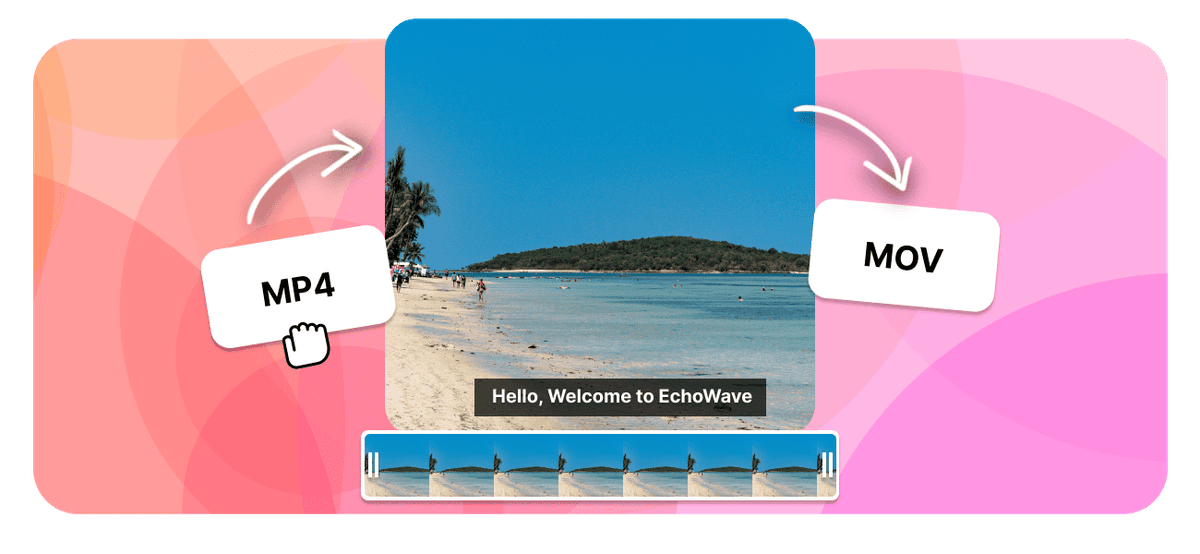
MP4 to MOV Converter Features
EchoWave is used by creators, marketers, educators, and businesses to convert and edit media online.





Wrap your MP4 in a QuickTime MOV container so it drops straight into Final Cut Pro, iMovie, and other Apple apps that prefer MOV. MOV and MP4 often share the same H.264 video and AAC audio, so the picture and sound can carry over with no quality change. Convert free in your browser, with no signup and no watermark.
How it works
How to convert MP4 to MOV
- 1
Upload your MP4
Drag your MP4 onto the converter or pick it from your device. Nothing to install.
- 2
Choose MOV and convert
Select MOV as the output and start. Free, with no sign-up and no watermark.
- 3
Download your MOV
Save the finished MOV, or open it in the editor to trim, crop, or resize it first.
Try it
Estimate your MOV
Pick a video bitrate and a length to see the MOV file size before you convert.
Drag to set the clip length in minutes, from 1 to 30.
An estimate. Real size varies with resolution, frame rate, and how much the picture moves.
The formats
MP4 vs MOV
MPEG-4 Part 14
The video format that plays everywhere
- Type
- Video container
- Holds
- H.264 video plus AAC audio, sometimes subtitles
- Typical size
- Large, it carries video
- Plays on
- Phones, browsers, TVs, almost any player
Best for:Watching and sharing video
QuickTime File Format
Apple QuickTime video, common on iPhone and Mac
- Type
- Video container (QuickTime)
- Holds
- H.264 or HEVC video with AAC audio
- Typical size
- Large, often bigger than MP4
- Plays on
- iPhone, Mac, QuickTime, most modern players
Best for:Recording and editing on Apple devices
Will it lose quality?
- When the codecs already match MOV, the converter can change the container without re-encoding, so the picture stays identical.
- When the video has to be re-encoded for MOV, a high bitrate keeps it visually close to the MP4.
- Converting cannot add detail the MP4 never had. The output is at best as good as the source.
Use cases
What people use it for
Troubleshooting
If something looks off
The MOV will not play
The file got larger
Audio and video drift out of sync
FAQ
MP4 to MOV questions
Is the MP4 to MOV converter free?
How do I convert MP4 to MOV?
Will converting MP4 to MOV lose quality?
Why convert MP4 to MOV for editing?
Is MOV the same as the video my iPhone records?
Can I convert MP4 to MOV on Mac and Windows?
Does the MP4 to MOV converter work on iPhone and Android?
Will a MOV be larger than the MP4?
What plays a MOV file?
Can I convert several MP4 files to MOV?
Why convert MP4 to MOV
MOV is Apple's QuickTime container, and it is the native language of the Apple video world. iPhones and iPads record MOV. Final Cut Pro, iMovie, and QuickTime Player were all built around it. Screen recordings made on macOS come out as MOV. When an Apple application is being fussy about a file, handing it a MOV is usually the shortest route to making the problem go away.
Here is the part that surprises people: MP4 and MOV are close relatives. The MP4 specification was derived from the QuickTime file format, and both routinely carry exactly the same H.264 video and AAC audio streams. The container is the packaging, not the picture. That is why this particular conversion is one of the gentlest in the whole list.
The practical reasons to make the move:
- Final Cut Pro and iMovie imports. Both prefer MOV, and both occasionally refuse an MP4 whose codec or metadata they do not like. Rewrapping into MOV often clears an import failure with no other change.
- Matching iPhone footage. If half your timeline is iPhone MOV and half is MP4 from another camera, converting the MP4s gives you one consistent set of files to work with.
- Apps that only list MOV. Some Mac utilities, motion graphics tools, and older Apple workflows simply do not offer MP4 in their file picker.
- Alpha channel and ProRes workflows. MOV is the container Apple's professional codecs live in. An MP4 cannot carry ProRes or transparency, and a MOV can.
The one thing MOV is not is a sharing format. Windows machines, Android phones, and plenty of web players handle MP4 more reliably. Convert to MOV to work on the video, then convert back to MP4 when you want to send it to someone.
How to convert MP4 to MOV
- Upload your MP4. Drag it in or browse for it. Footage from a phone, a camera, a drone, or a screen recorder all behaves the same.
- Choose MOV as the output. When the MP4 already holds H.264 video and AAC audio, which covers the large majority of MP4 files, those streams can move across into the QuickTime container as they are.
- Download the MOV. It opens straight into QuickTime Player, iMovie, or Final Cut. No account, no watermark, nothing installed.
If the clip needs work first, the editor will trim, crop, resize, or add captions before you export, which saves a round trip through your editing software for simple changes.
What people are saying about EchoWave
Will the quality change?
Usually not at all, and understanding why makes the rest of this conversion easy to reason about.
A container is a wrapper. It describes how the video stream, the audio stream, timecode, and metadata are laid out inside the file, but it does not compress anything itself. Picture quality comes entirely from the codec inside, which for both MP4 and MOV is normally H.264, or HEVC on newer iPhones. When the codec in your MP4 is one that MOV accepts, the conversion is a rewrap: the same encoded video data is written into a new container and comes out the other side identical. Nothing is decoded, nothing is re-encoded, and no generation of quality is lost.
A re-encode only becomes necessary when the source holds something QuickTime cannot read directly, which is uncommon in MP4 files but does happen with unusual codecs. In that case a high bitrate keeps the result visually indistinguishable from the source. Either way the conversion cannot improve on the MP4, because no conversion adds detail that was never recorded in the first place.
File size follows the same logic. A rewrapped MOV lands within a fraction of a percent of the original MP4, since it carries the same data with slightly different housekeeping. A large size change means the file was re-encoded rather than rewrapped. MOV files do have a reputation for being bigger than MP4, but that reflects what people typically put in them, such as ProRes masters and high-bitrate iPhone footage, rather than any property of the container itself.
Playing and sharing your MOV
On a Mac, everything opens MOV. On Windows, the built-in Films and TV app handles most MOV files these days, and VLC opens the rest, including anything with an unusual codec. Adobe Premiere Pro and DaVinci Resolve both import MOV without complaint on either platform.
Where MOV runs into trouble is the places MP4 owns: some Android phones, older smart TVs, web pages, and a few social upload forms. There is no need to fight it. Work in MOV, then run MOV to MP4 once the video is finished and needs to travel.
For other routes into an Apple workflow, AVI to MOV modernises legacy Windows footage in one step, and MKV to MOV does the same for media server files. If you want a web-ready file instead, MP4 to WebM is the better target. When the MOV you end up with is larger than you would like, compress MOV brings it down to a target size, and the video converter covers every remaining pair.

About the EchoWave team
EchoWave is a browser-based video and audio editor built by Lemon Vault LLC since 2018. The people who build the editor write these guides and test every step in the production app before publishing.
Convert MP4 to MOV for free Free online converter
Upload an MP4 and download a QuickTime MOV ready for Final Cut and iMovie. No signup, no file limits, and no watermark.
Convert Files →
Keep converting